Circuit diagram maker
Easily build and visualize your circuit diagram online with our circuit design software. Start from scratch or use one of our curated templates. Collaborate and share your diagram with others.


By registering, you agree to our Terms of Service and you acknowledge that you have read and understand our Privacy Policy.

Get started with our AI diagram generator
 , opens in a new tab
Professional, online circuit diagram maker
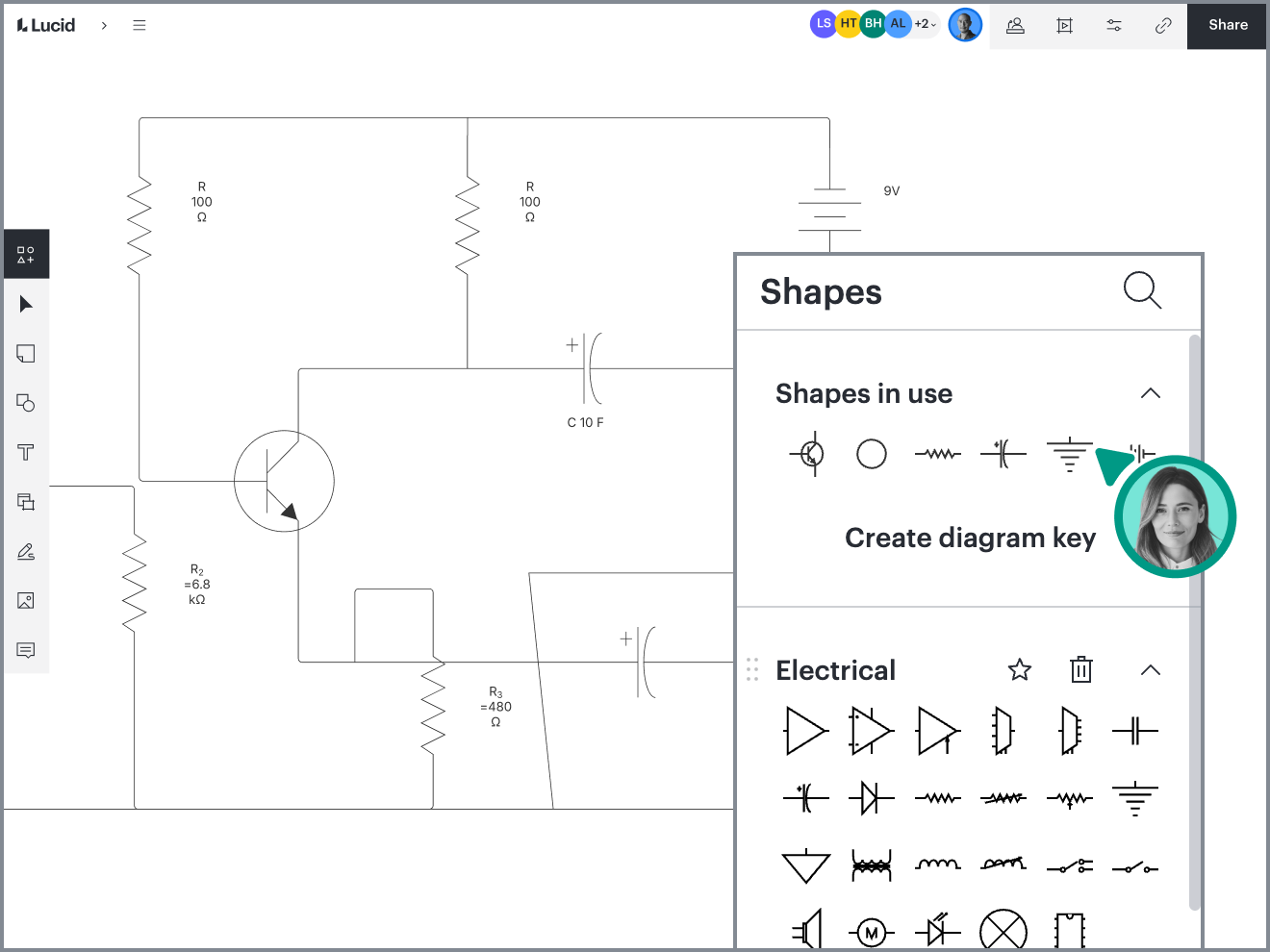
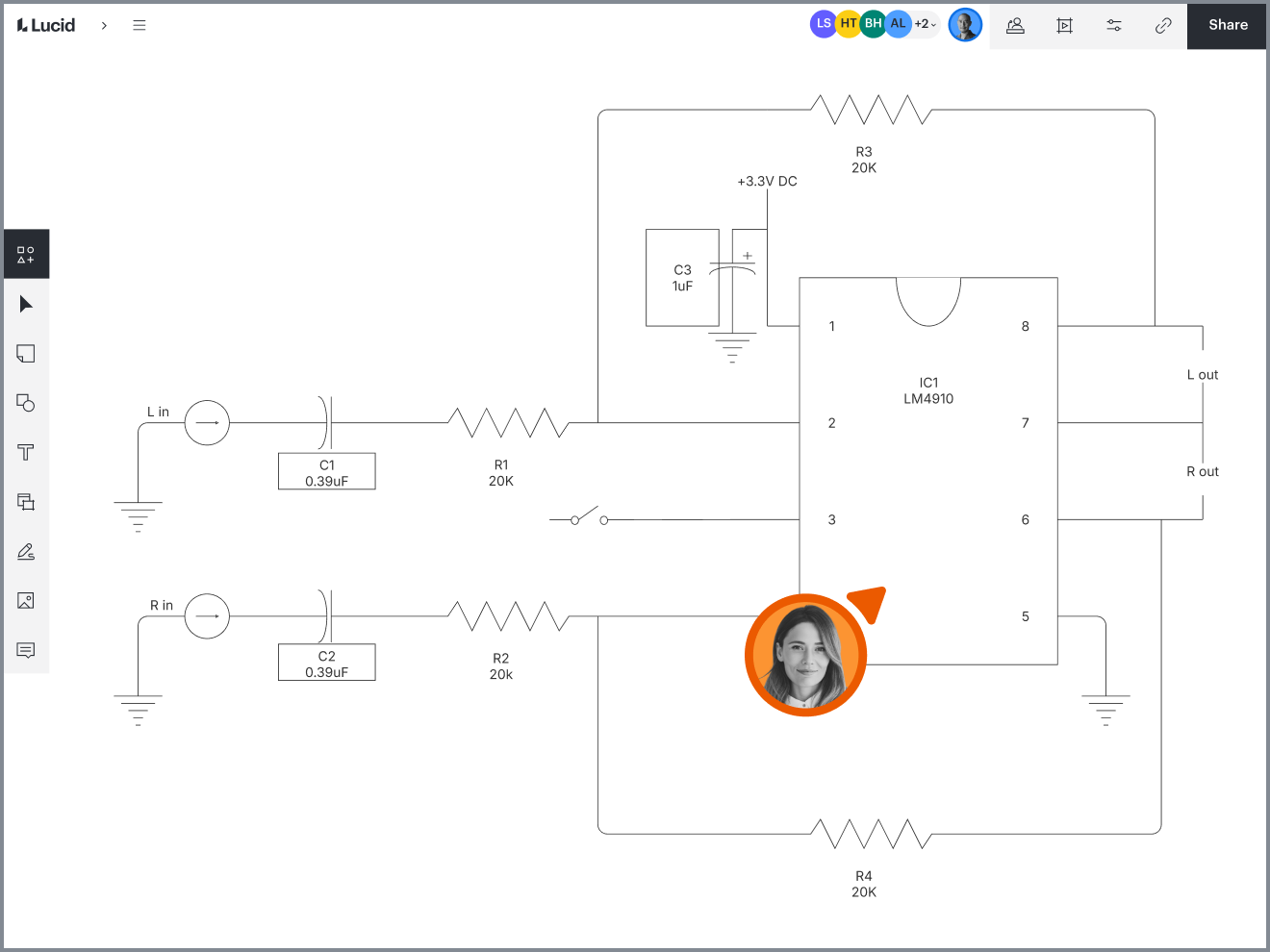
Create and visualize your circuits by building a pictorial or schematic diagram.
Import existing files from Visio®, Gliffy, draw.io, and OmniGraffle

Dynamic integrations with your favorite apps

Dozens of industry-standard symbols
Work from anywhere

Create easy schematic or pictorial circuit diagrams
Highly rated

Lucidchart feature highlights
Real-time collaboration
Real-time collaboration
Data linking
Data linking
Conditional formatting
Conditional formatting
Layers
Layers
Revision history
Revision history
Shape libraries
Shape libraries
AI prompt flow
AI prompt flow







Lucidchart feature highlights
Streamline work by enabling multiple collaborators to create and edit the same diagram at once.
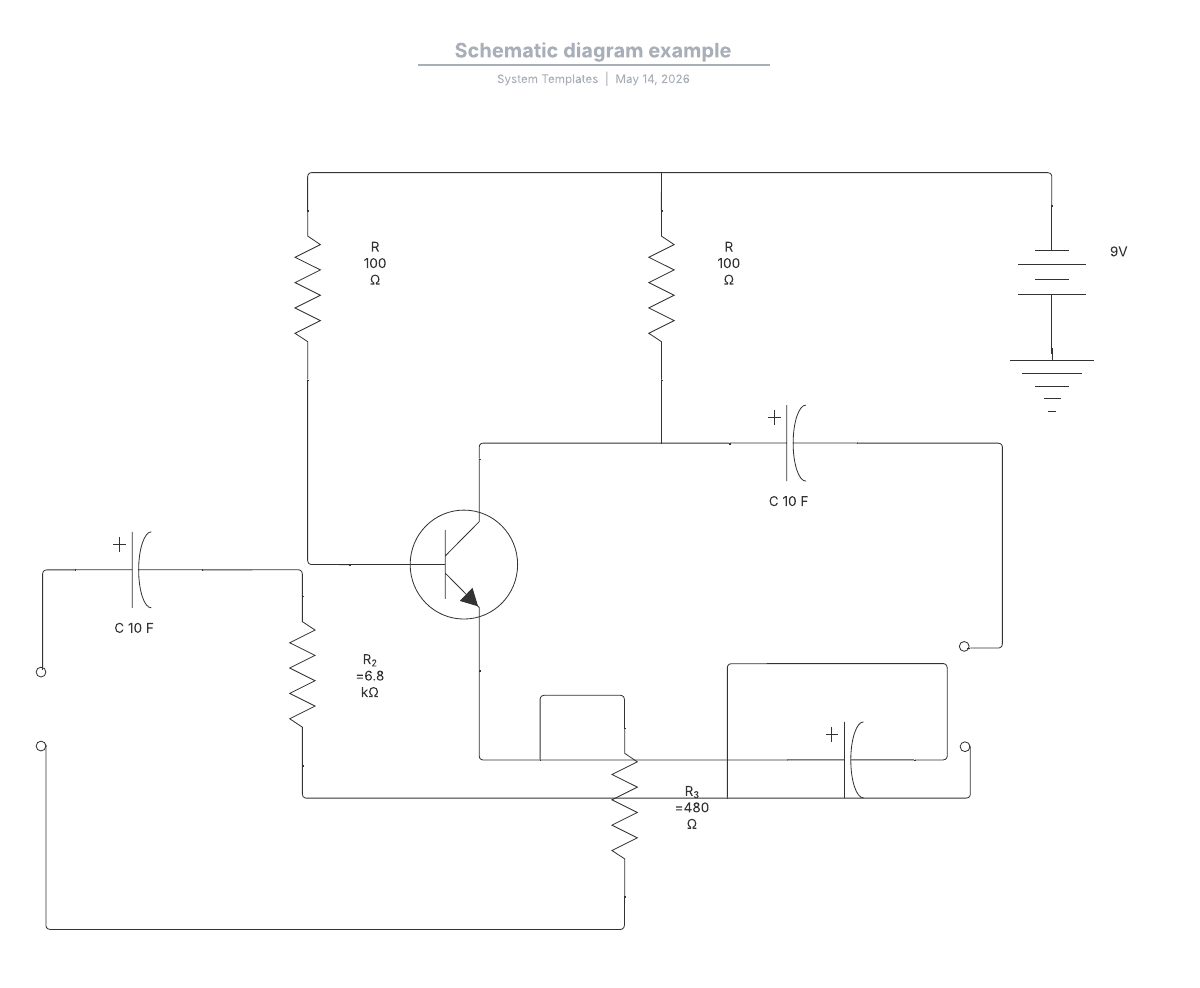
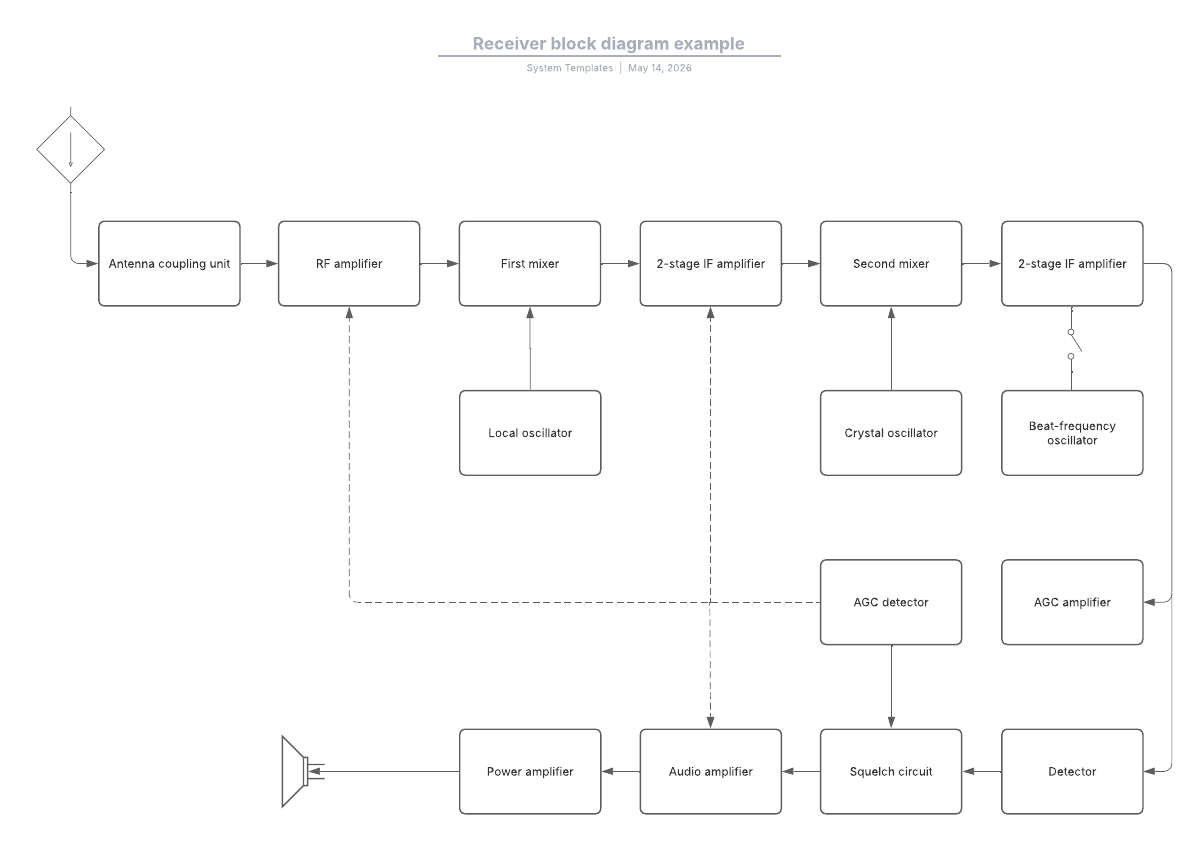
Circuit diagram templates and examples
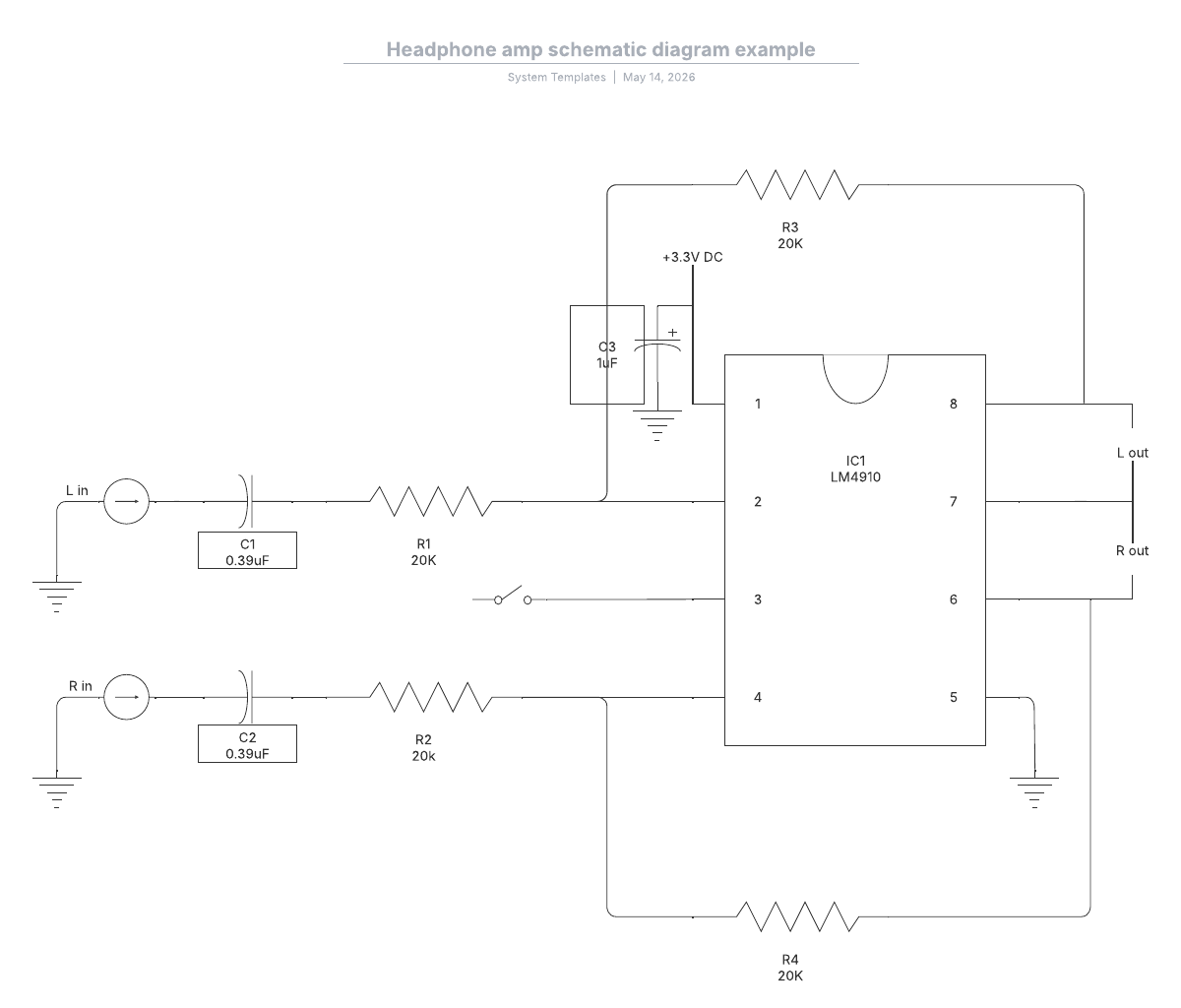
Build out your circuit diagram with one of our templates.
Getting started in Lucidchart
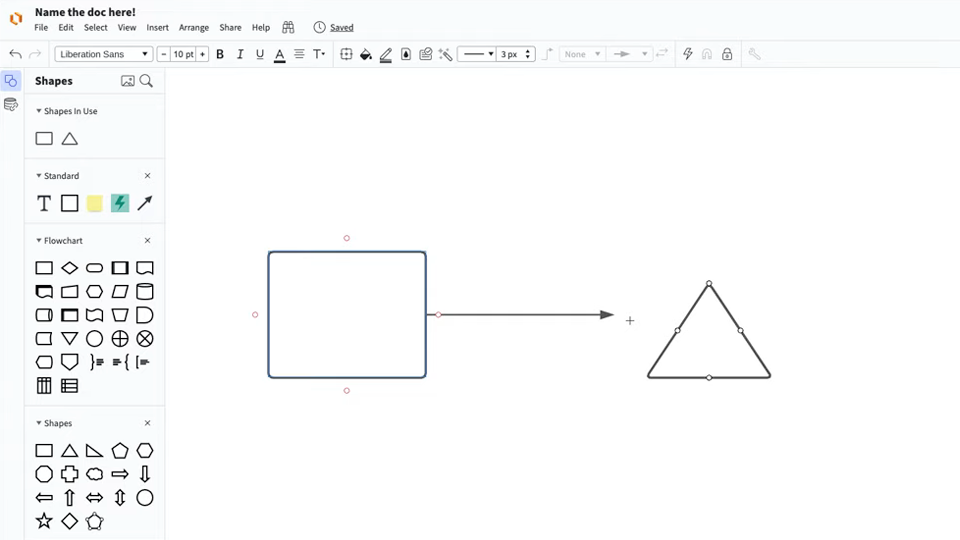
Master the basics of Lucidchart in 3 minutes
Follow along with this video tutorial and learn how to make any type of diagram in Lucidchart.
Why teams choose Lucidchart
As an intelligent diagramming application, Lucidchart provides simple yet powerful capabilities for visualizing information.

Collaboration. Bring teams together side by side on a shared canvas from anywhere in the world.
Alignment. Build transparency and shared understanding of how a team or company works.
Large-scale change. Increase visibility, standardization, and knowledge sharing across your entire org.
End-to-end workflows. Upgrade to the Lucid Suite for a complete, connected visual collaboration solution.


What is a circuit diagram?
A circuit diagram is a visual representation of an electrical circuit. A pictorial circuit diagram uses images of components (such as photos or sketches), while a schematic diagram shows the components and interconnections of the circuit using standardized symbols.

How to create a circuit diagram in Lucidchart
Determine the goal and the audience of your circuit diagram
Select the shape library and drag and drop components
Draw and format connections
Drop and designate power sources
Review and share
Additional Lucidchart resources

Lucid Training Labs
Learn visual collaboration skills in free, self-serve courses and live training workshops.

Lucid Community
Connect with other users to share tips and insights. Provide feedback to Lucid’s product team.

Help center
Find detailed articles with step-by-step instructions for using specific Lucid features.

Lucidchart tutorials
Go to the Lucidchart tutorials playlist on YouTube for video training on various topics.

Lucid AI diagramming hub
Get an overview of Lucid AI’s capabilities and find additional resources.

Lucid blog
Explore tips for optimizing collaboration, aligning teams, and driving initiatives in Lucidspark.

Lucidchart pricing
Create a free account and compare options for paid Individual, Team, or Enterprise plans.
Frequently asked questions about circuit diagrams
What shapes and symbols should I use in my circuit diagram, and where can I find them in Lucidchart?
I don’t see a specific component I need to use in my diagram within the shape library. How can I get it?
How do I format my line connections in Lucidchart?
How can I use Lucidchart to work on a circuit diagram I already have in Visio®?
What other diagramming platforms does the Lucidchart file import feature support?
What is the difference between a schematic and pictorial circuit diagram?
Everything you need to make a diagram
In addition to our online Circuit diagram maker, Lucidchart offers support and training resources to help you branch out to any type of diagram.
View Lucid Training Labs