With a virtual whiteboard, such as Lucidspark, you can make your team's conversations even more engaging, productive, and collaborative for everyone involved. And while virtual whiteboards are a natural fit for remote calls, the same benefits apply in hybrid and even fully in-person meetings—because the real advantage is making ideas visible, shared, and easy to revisit.
Tips for using a whiteboard for virtual meetings
Just as classrooms and teams have gathered around the board for as long as we all can remember, the virtual whiteboard empowers digital collaboration and brainstorming during online calls. When you rely on separate notes and individual interpretations, it's easy to leave a meeting thinking you're aligned—only to discover later that everyone heard something different. A shared digital board helps unify team members and clarify takeaways.
Use collaboration features to involve meeting participants
You can help everyone stay aligned and on track by using collaborative features with your virtual whiteboards. Collaborative features get your participants more involved. Interactive choices such as voting, timers, sticky notes, emojis, and comments allow participants to share their feedback, questions, and input directly into the conversation. This, in turn, gives your team a voice and is far more engaging than talking or delivering a presentation with slides.
Although you can encourage participation with these features, you should actively promote the type of collaborative environment you want. One practical advantage of digital participation is that it's more visible. When everyone is working in the same space, it's harder to "opt out" and easier to notice who hasn't had a chance to contribute yet. If your tool supports it, assign each participant a distinct collaborator color so contributions are clearly attributable across cursors, sticky notes, and sketches.
To further encourage collaboration, try to take advantage of all digital whiteboarding features by:
-
Creating a poll: Voting is great for inviting opinions on a controversial or uncertain question.
-
Asking questions: Consider adding some questions to the board beforehand. Share an agenda and see if anyone has questions to add.
-
Adding examples: Some participants may not know what feedback you need if you don’t show them. Add your own ideas or assign a teammate to help.
-
Gamifying with icebreakers: During the meeting, add a fun activity to get participants talking (and thinking). For instance, ask everyone to share three GIFs that best represent what they hope for the week.
As you collect input, keep everything on the board rather than in side notes. This helps turn the whiteboard into a shared record that the group can reference later instead of a set of fragmented takeaways.
Add images to increase engagement
Visuals can add that missing creative element and level up your brainstorming. Graphics such as GIFs, photos, and even freehand art drawn by your coworkers can liven up dry discussions, breaking the monotony of endless text and building interest in the material you're discussing.
Visuals can also help your participants understand your perspective, eliminate biases, clarify ambiguities, and convey emotions. They enhance our collaboration and empower our brainstorming beyond what traditional presentations can do.
Images also make it easier to get clear feedback and buy-in from stakeholders because people can react to something concrete (e.g., a rough wireframe, a flow, a concept cluster) rather than trying to infer meaning from text-only notes. With a digital whiteboard, stakeholders are given a link to the whiteboard itself. They can easily comment on any aspect of the whiteboard, and tasks can be assigned based on that feedback.
Use an agenda template
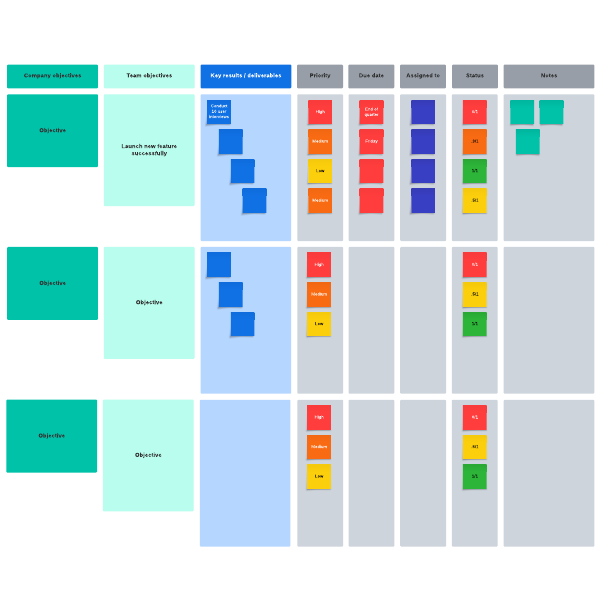
If you've ever attended a meeting where everyone lost track of the topic at hand, then you know the value of an agenda for keeping participants in sync and on topic. Templates provide an excellent shortcut to building out those agendas.
If you're using an agenda, keep these best practices in mind:
-
Share it early: A surprise agenda doesn't help your participants prepare. Share as early as is practical and sensible.
-
Find facilitators: Each item could have a facilitator or champion, giving participants space to share areas of expertise.
-
Link to resources: Your agenda should link out to materials your team needs to reference before or during the meeting.
-
Add discussion points: For a meeting where you'll open time for discussion, adding topics to the agenda allows you to reserve bandwidth.
Many different types of agenda templates are available, making it easier to find the right fit for the meeting you're planning. Agenda templates usually include:
-
Updates: Quick progress updates can be listed on the agenda for each team member, department, or role to discuss in depth during the meeting.
-
Goals: High-level goals are a great addition and keep the meeting focused on what matters.
-
Action items: To keep momentum and ensure follow-through, capture action items directly on the whiteboard during the meeting. Assigning owners and tagging team members in real time prevents tasks from getting lost and shifts responsibility from a single distributor to the entire team.
-
Shoutouts: Highlighting what's going well is great for motivation. Throw in a fun graphic or GIF to make it visual.
-
Priorities: Use your agenda to help you set priorities and focus the meeting on specific areas.
Areas for improvement: Whenever you communicate ways your team could improve, keeping a positive tone is invaluable. You can discuss what's important without pointing fingers if you do it right.
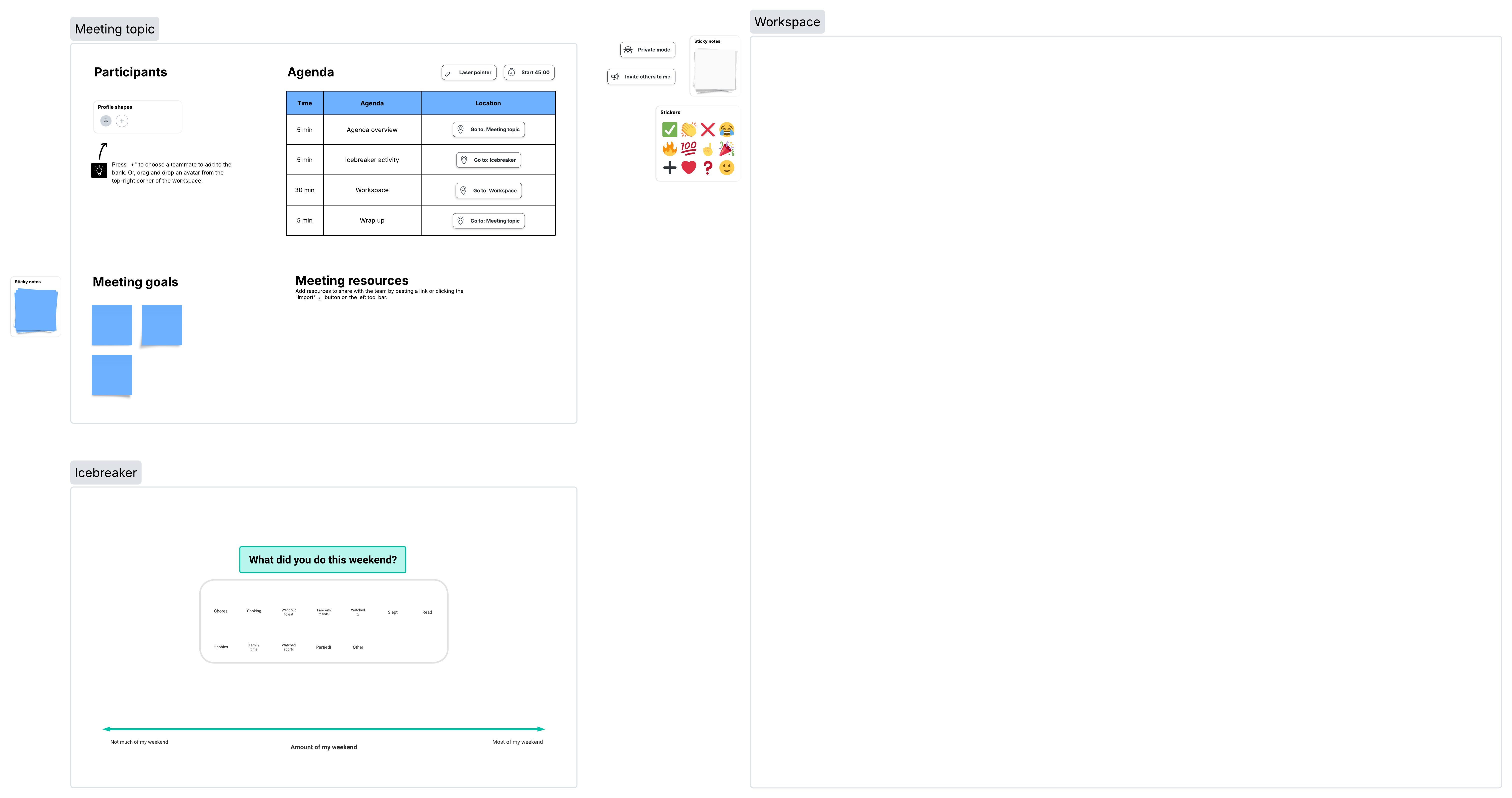
Once your agenda's ready, add it to the whiteboard where it's visible during the meeting. Make sure your team can see it and read it. Because the agenda lives on the same canvas as the discussion artifacts (i.e., notes, diagrams, decisions), it can also become part of your documentation, making it easier to revisit what was covered and what changed over time.
Facilitate small group work using breakout boards
Ever heard of the Ringelmann effect? In essence, individual contribution to group efforts decreases as the group grows. One person working hard usually means they're giving 100% to the task, but large groups often result in individual efforts declining significantly and becoming minimally efficient.
To maximize your meetings, consider how you can leverage the power of small groups. Breakout boards, collaborator colors, timers, voting, and Visual Activities are all Lucidspark features designed to make the most of what small groups offer. Lucid's Facilitator Tools enable teams to collaborate on a shared virtual whiteboard with special features to support successful meetings, including:
-
Broadcast: Send an announcement to an entire group.
-
Laser pointer: Draw virtual attention to specific areas on the board.
-
Take the lead: Automatically guide participants around the board during presentations or demonstrations.
Meet with a whiteboard
Virtual whiteboards streamline collaboration by serving as a real-time source of truth that everyone can access and contribute to, regardless of location. By consolidating individual notes into one cloud-based record, whiteboards ensure that outcomes are documented organically and accurately without relying on a single note-taker. Because digital whiteboards preserve version history and can’t be accidentally erased the way a physical, in-person whiteboard can, they provide a reliable, evolving record that keeps teams aligned and preserves valuable ideas.
Ready to uplevel your virtual meetings with a virtual whiteboard? Give Lucidspark a try.
Everything you need to whiteboard online
Get the ultimate online whiteboard for teams. Brainstorm, plan projects, and collaborate virtually on Lucidspark’s infinite canvas.
Sign up free