Effective collaboration is vital to success in the workplace. In fact, those working in jobs with high collaboration are 50% more likely to successfully complete tasks and are nearly 30% more satisfied with their jobs than those who don’t work in collaborative environments. That equates to less burnout, decreased turnover, and more productivity.
If you’re looking to improve your workplace collaboration (especially remote collaboration), Lucidspark is a great place to start. With hundreds of templates, features, and integrations to make it easy to connect, Lucidspark has everything you need for powerful collaboration, no matter where you’re working.
In this article, we’re sharing features in Lucidspark built to drive collaboration. From integrations to small tweaks and settings, these will make a big impact on your ability to do your best work together.
1. Collaborator colors
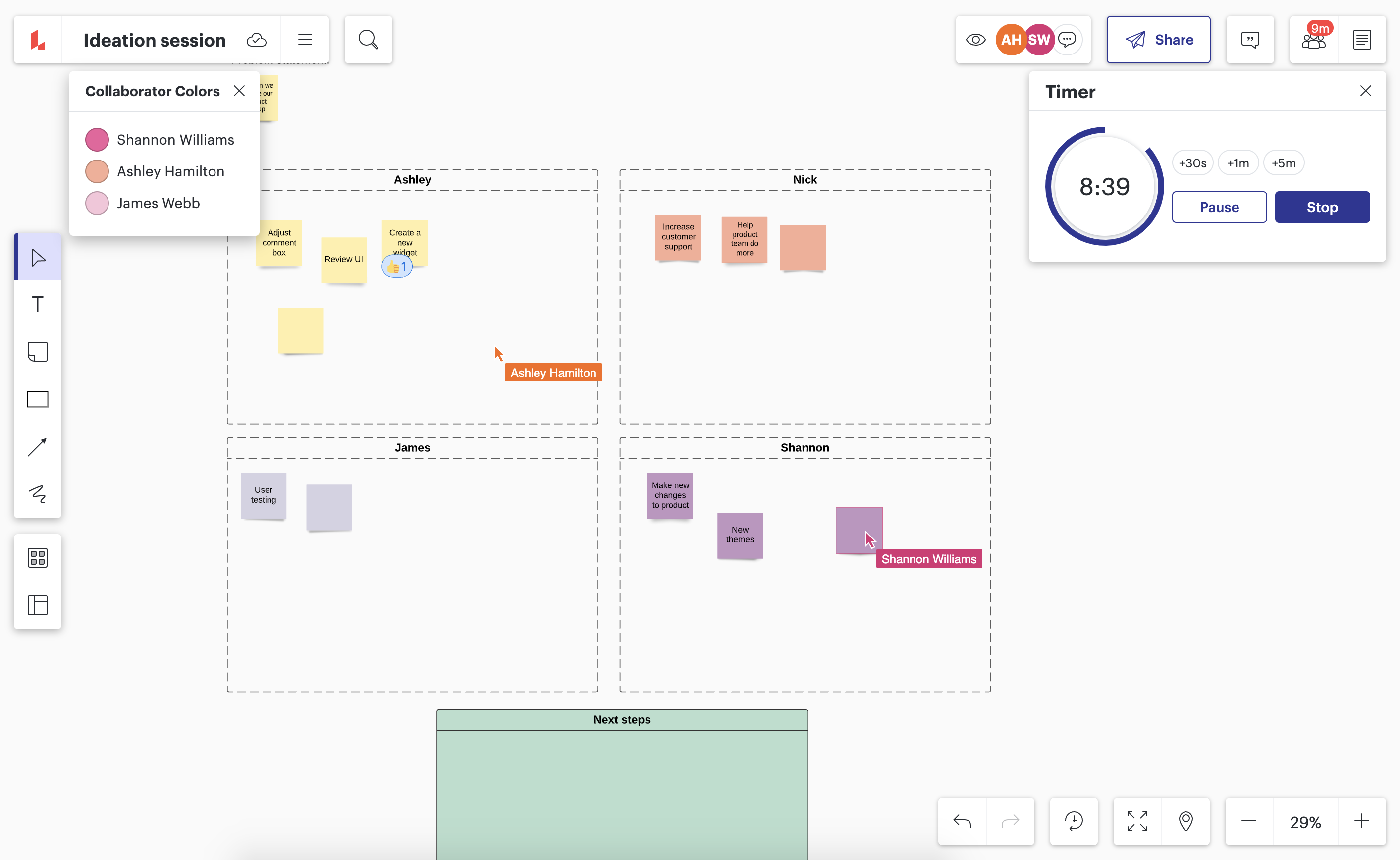
The more people you have working on a Lucidspark board, the trickier it can become to remember what everyone contributed. Collaborator colors fix this problem. Simply toggle the option on, and each collaborator will automatically get assigned a color that will style their icon, cursor, sticky notes, and even any freehand drawings they do. Don’t forget to also toggle on the color legend on the collaborator colors panel to easily identify each person’s color.
You can personalize your color by clicking on your image icon or initials in the top-right corner, selecting My color, and choosing your favorite hue.
2. Show authors on sticky notes
To take contribution identification one step further, toggle ”Show authors” in the collaborator dropdown icon (it looks like three people icons) for names to appear on all sticky notes. Or, to show the author of a particular sticky note, just right-click and select Show Author. This simple but helpful feature allows you to identify others’ thoughts and ideas at a glance.
3. Collaborative AI
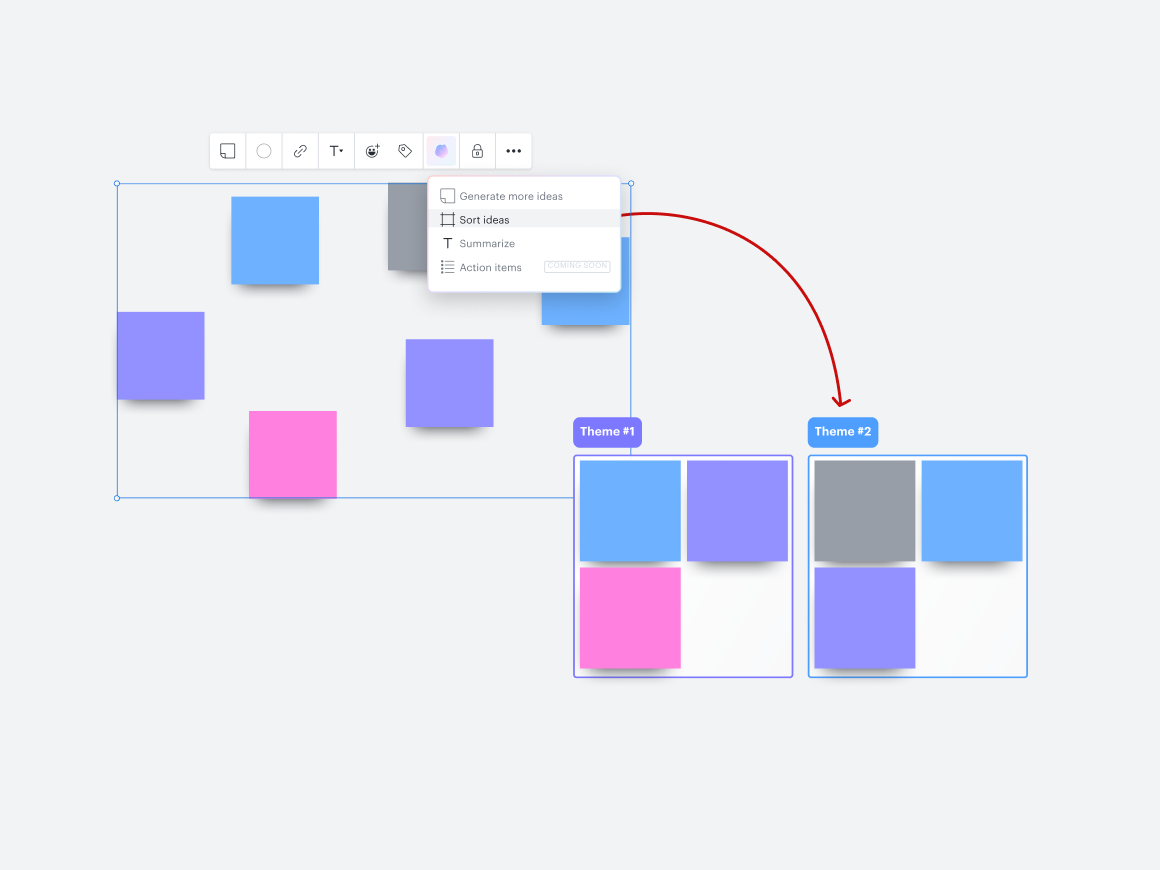
Take your collaboration to the next level with Collaborative AI. Collaborative AI will help your team boost innovation, creativity, and productivity as it assists you by brainstorming ideas, summarizing sessions, and uncovering insights and key themes. You’re no longer limited by your own imagination—if you get stuck, Collaborative AI can expand on what you’ve already brainstormed and provide ideas you haven’t thought of yet. With Collaborative AI, your team can achieve far more than you could previously in significantly less time.
4. Breakout boards
Breakout boards make it easy to split up collaborators into smaller groups. Whether you’re working in focus groups, breaking up tasks in a project, or simply want to create less intimidating spaces for sharing opinions or brainstorming, breakout boards are the answer. You can create up to 50 breakout boards at a time. Simply select the breakout board icon (it looks like two rectangles with a + in the middle) from the primary toolbar to get started.
5. Team hubs
Create a central spot for your team to initiate work from that can house your documents, workflows, and projects all in one place. Plus, stay up to date on progress and assignments. No more spending time searching for context—team hubs are your new go-to spot for information.
Within your team hub, you can also create a dedicated team space, a Lucidspark board that houses important information like contact information, working preferences, resources, commonly visited documents, and more.

Get our best tips for setting up your team hubs and spaces to maximize collaboration.
Read now6. Visual Activities
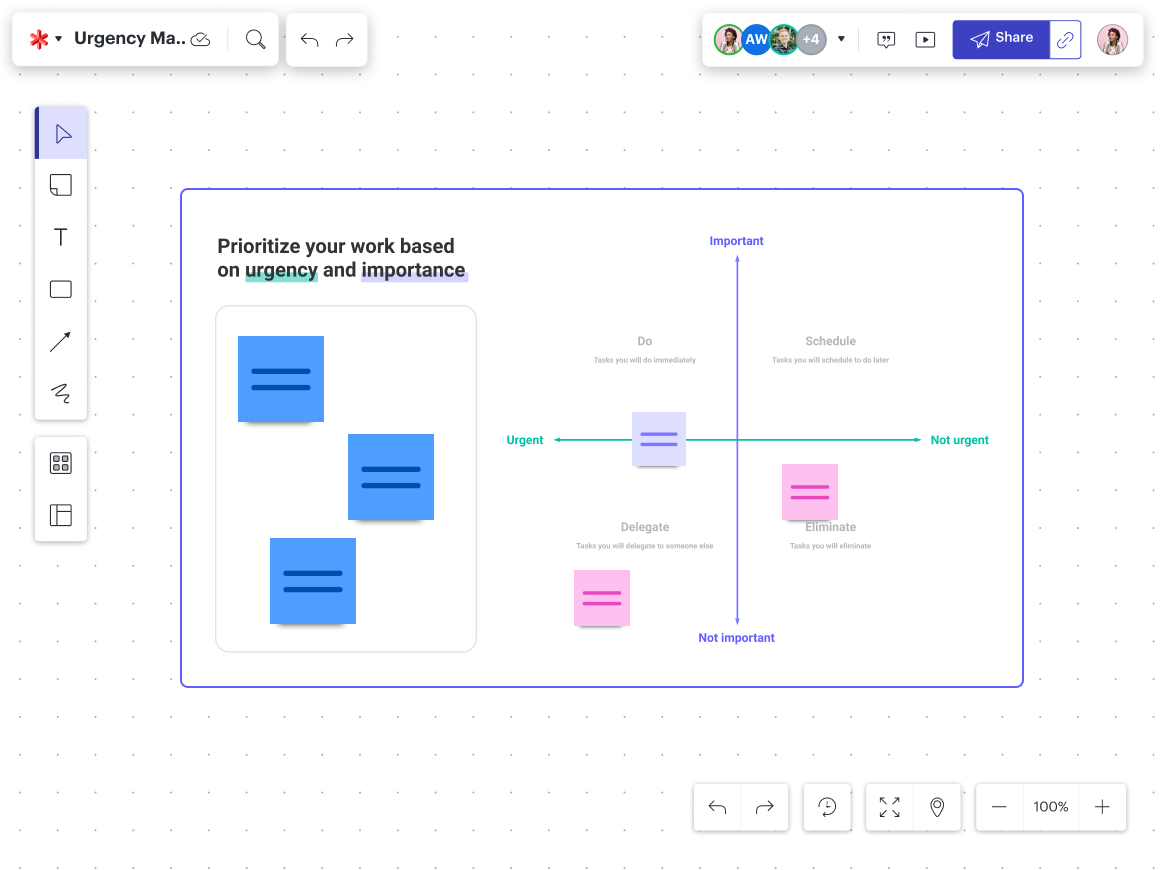
It can be difficult to ensure you’re getting everyone’s ideas and opinions in a meeting, especially when you’re not face-to-face. Visual Activities solve these problems by helping you synthesize opinions in seconds.
Visual Activities are easily shared with a link or dropped in a Lucid document. They can be set up to prioritize items along a slider, matrix, or a variety of axes, or sort items into different categories. From there, your team members can participate, and their results will be aggregated in several different ways. You can view an average of the feedback comprehensively, view results of all users at once, or even view results by individual. This makes it super easy to gauge team bandwidth and morale, increase engagement, get feedback, prioritize next steps, and more.
7. Assign comments and tasks
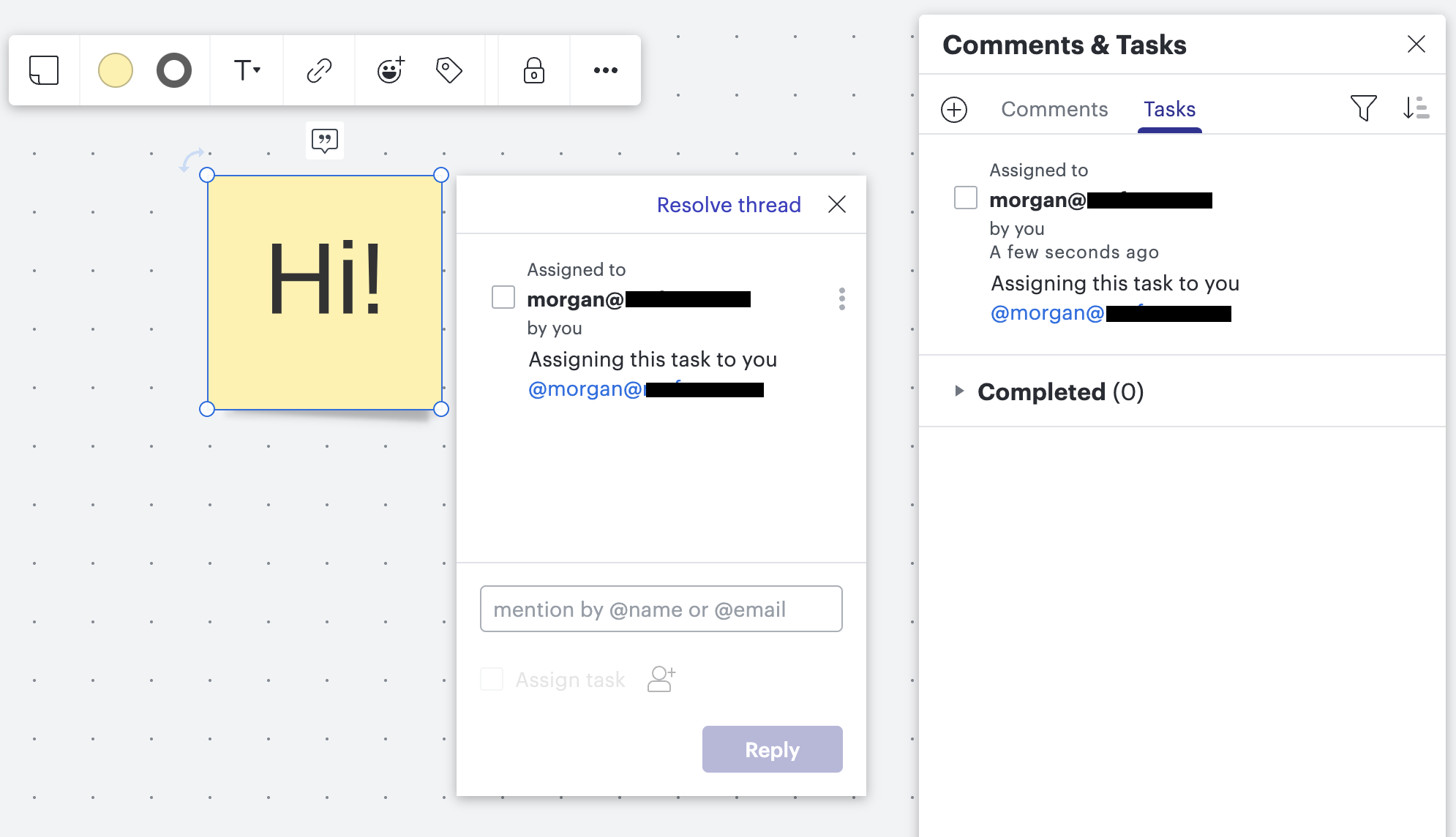
It’s easy to get a collaborator’s attention in Lucidspark and ensure team members see a specific comment or assignment. Whether you’re online at the same time or asynchronously, work confidently knowing you’re on the same page.
You can add comments by selecting the Comment icon in the upper-right corner of the canvas (it looks like a quotation mark inside a speech bubble), clicking + Add new comment in the panel that pops up, and clicking where on the board you’d like it to go. Then, type and select Comment! Tag a specific team or individual using @mentions in your comment.
8. Facilitator Tools
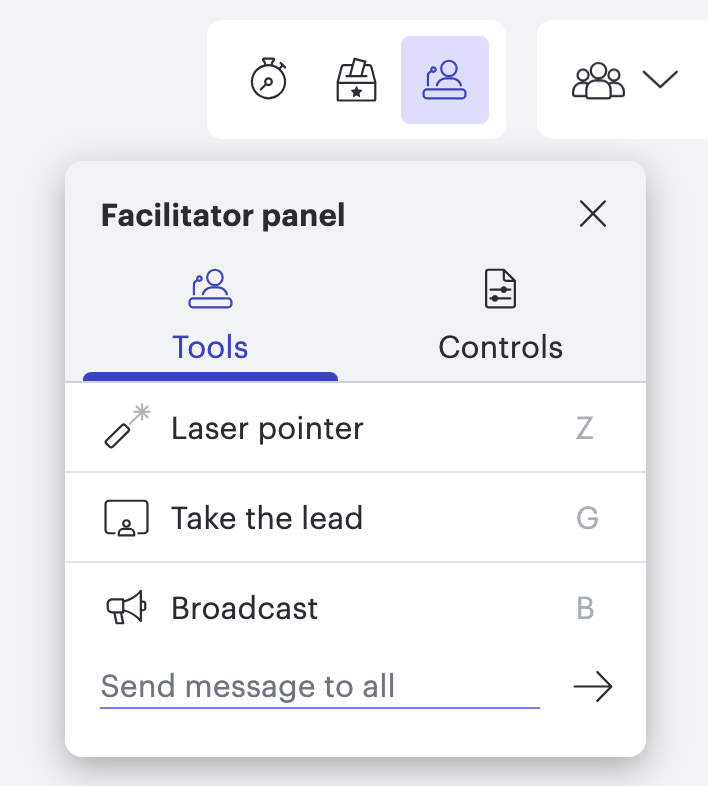
When facilitators are empowered to lead, collaboration becomes easier. Lucidspark’s Facilitator Tools are perfect for this. They ensure participants stay engaged and meetings are focused overall. These remote collaboration tools include:
-
A laser pointer to help participants focus on what matters most
-
Take the lead, which makes participants follow you in your document during a demonstration or collaboration session
-
Broadcast, which allows you to send an announcement to the entire group on the main board
-
A timer that helps you stay on track with your agenda
-
Voting initiation for ideas, strategies, and more
-
Hiding objects so participants cannot see shapes or elements until you’d like them to
-
Locking objects so shapes and elements on the board cannot be moved around
To access all of these features and personalize the settings, click the Collaborators icon in the right corner of the canvas (it looks like three people icons) and select Make me a facilitator. From there, you can access the features in the Facilitator panel that appears.
9. Loom and Zight integrations
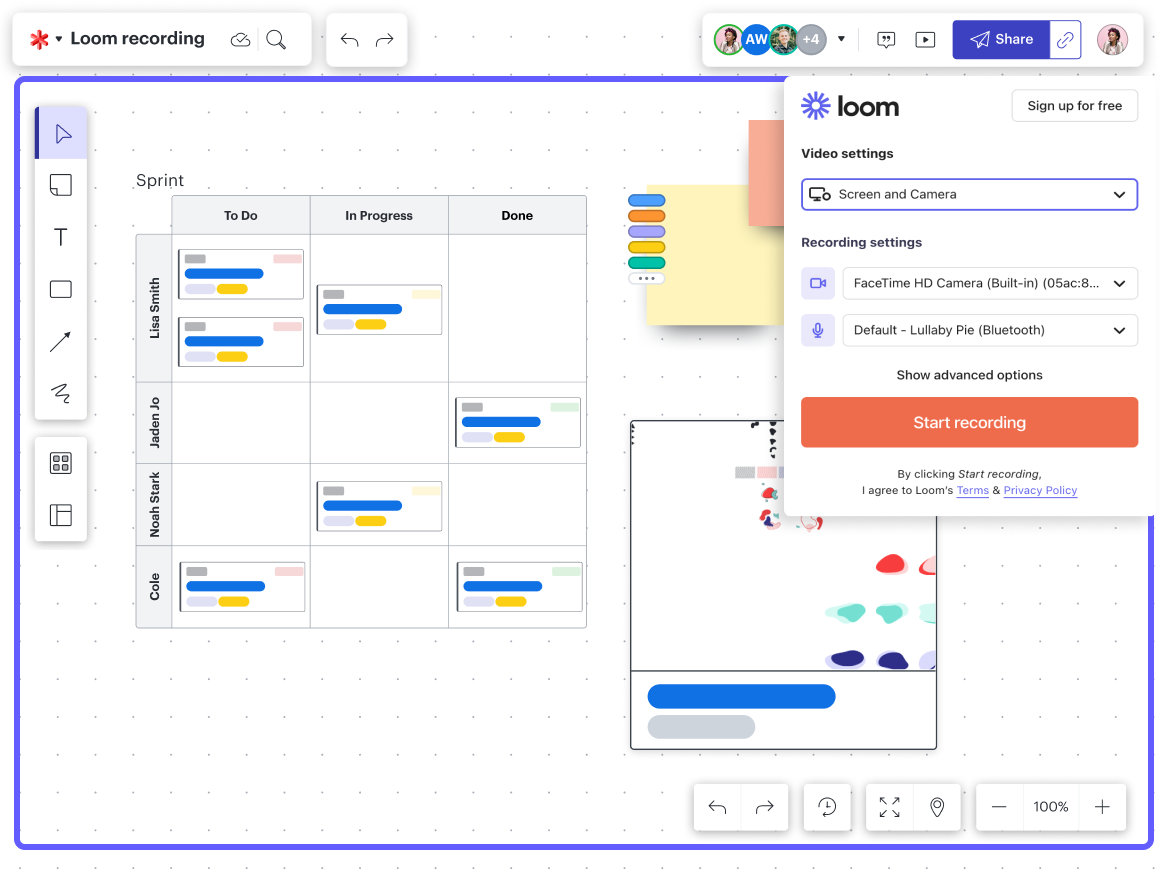
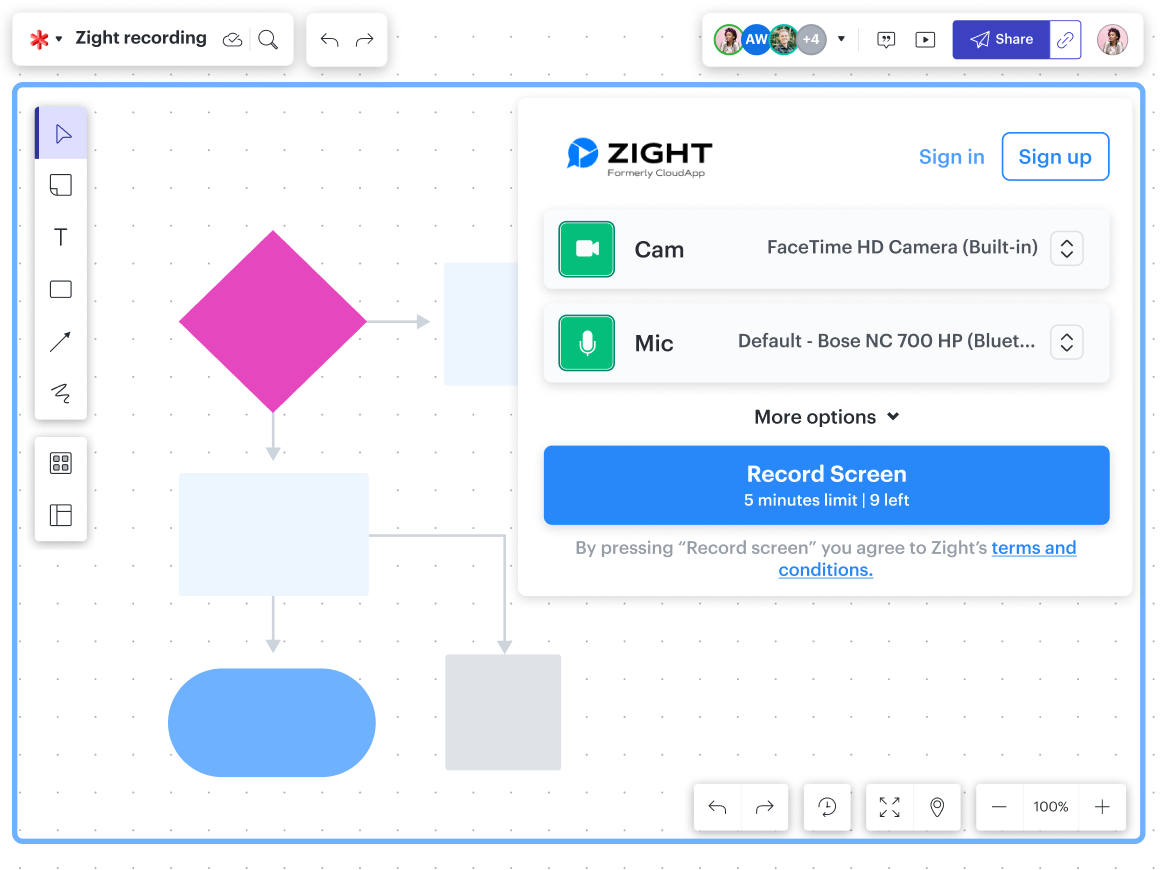
Despite all of our amazing online features, face-to-face collaboration is still valuable. With our Loom and Zight integrations, you can keep the flexibility of asynchronous collaboration while also gaining the context and clarity of an in-person meeting. Both of these integrations allow you to record and embed a video into your Lucid document, enhancing viewers' comprehension and ensuring understanding of tone and voice. Video integrations can truly level up remote team collaboration.
10. Collaborator cursors
Follow other collaborators on your board in real time with collaborator cursors. Up to twenty cursors will display an icon with an individual’s photo or initials. Click on an icon to see the collaborator’s full name. Plus, if your board is full and you can’t find what a specific person is working on, simply click on their icon in the top-right corner to see exactly where they are.
We’re sharing six templates that can increase your team’s collaboration.
Check them out