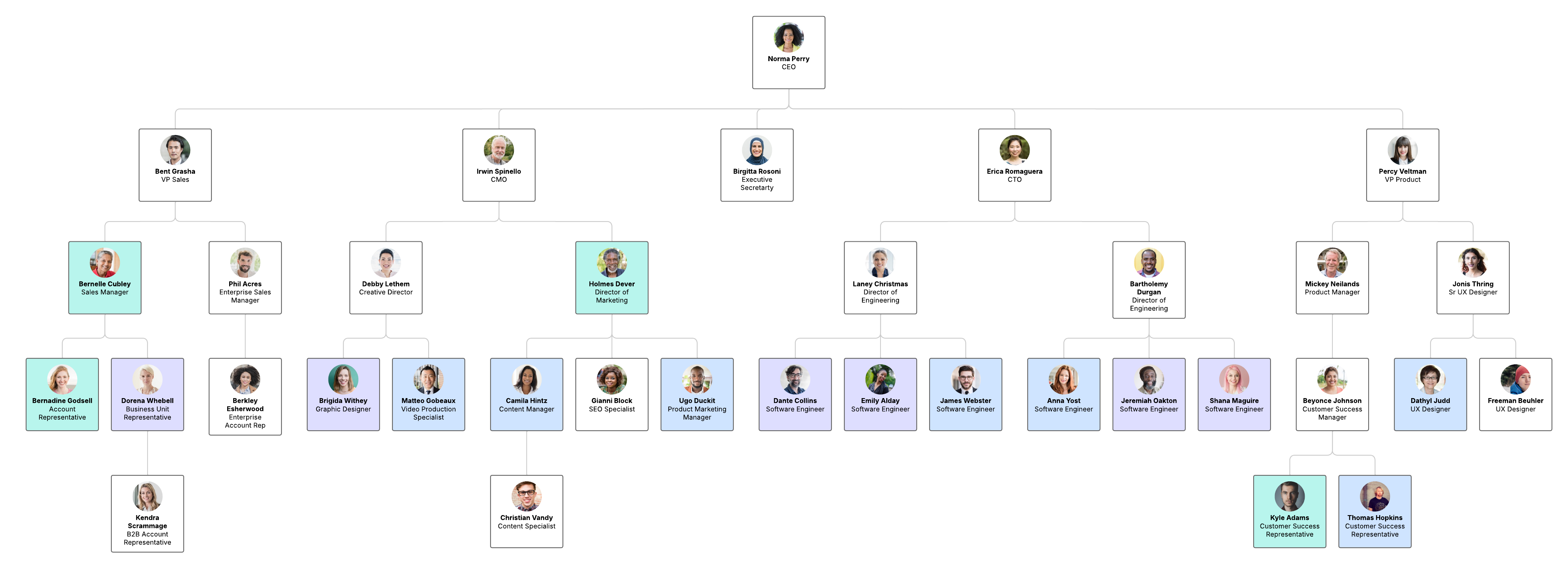
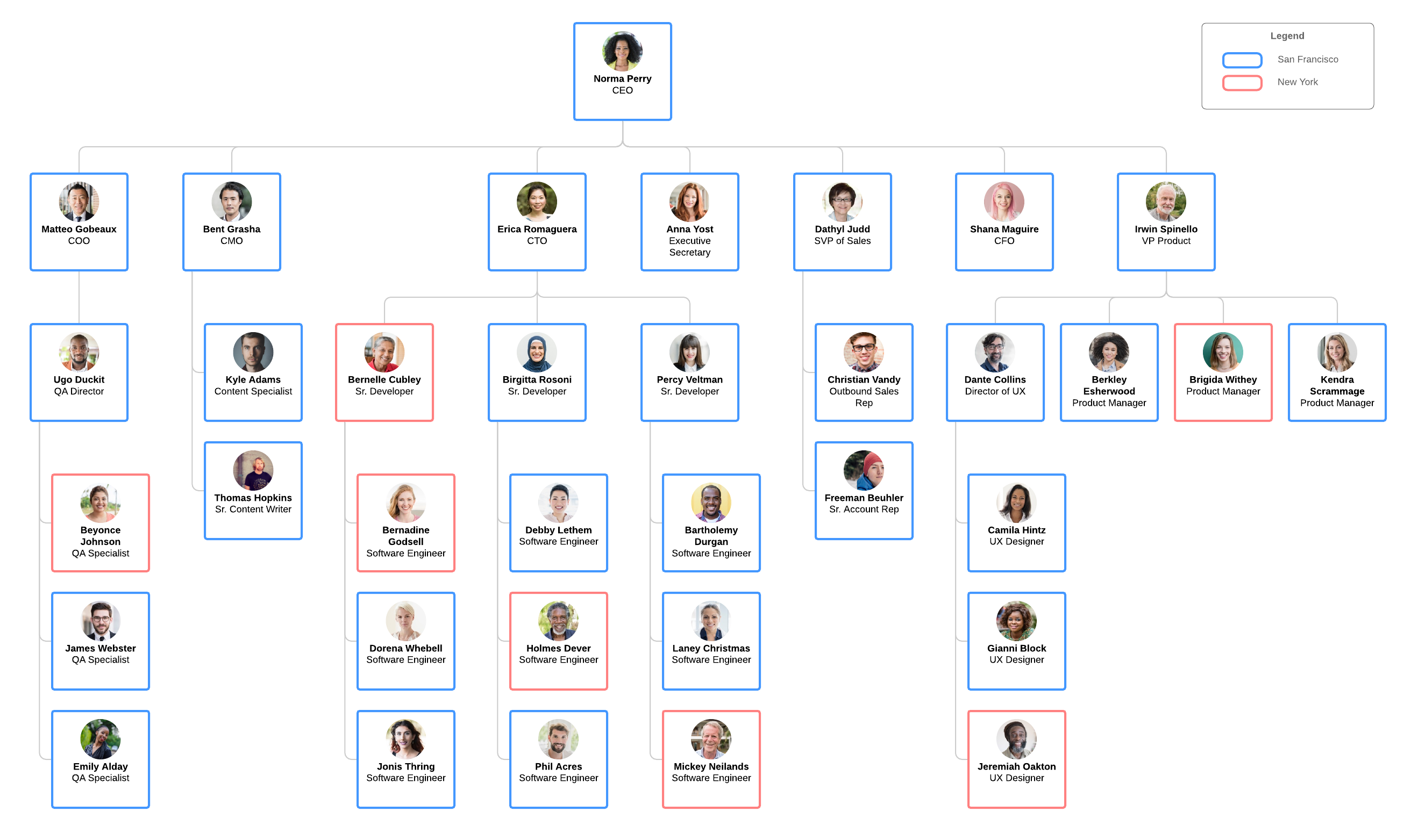
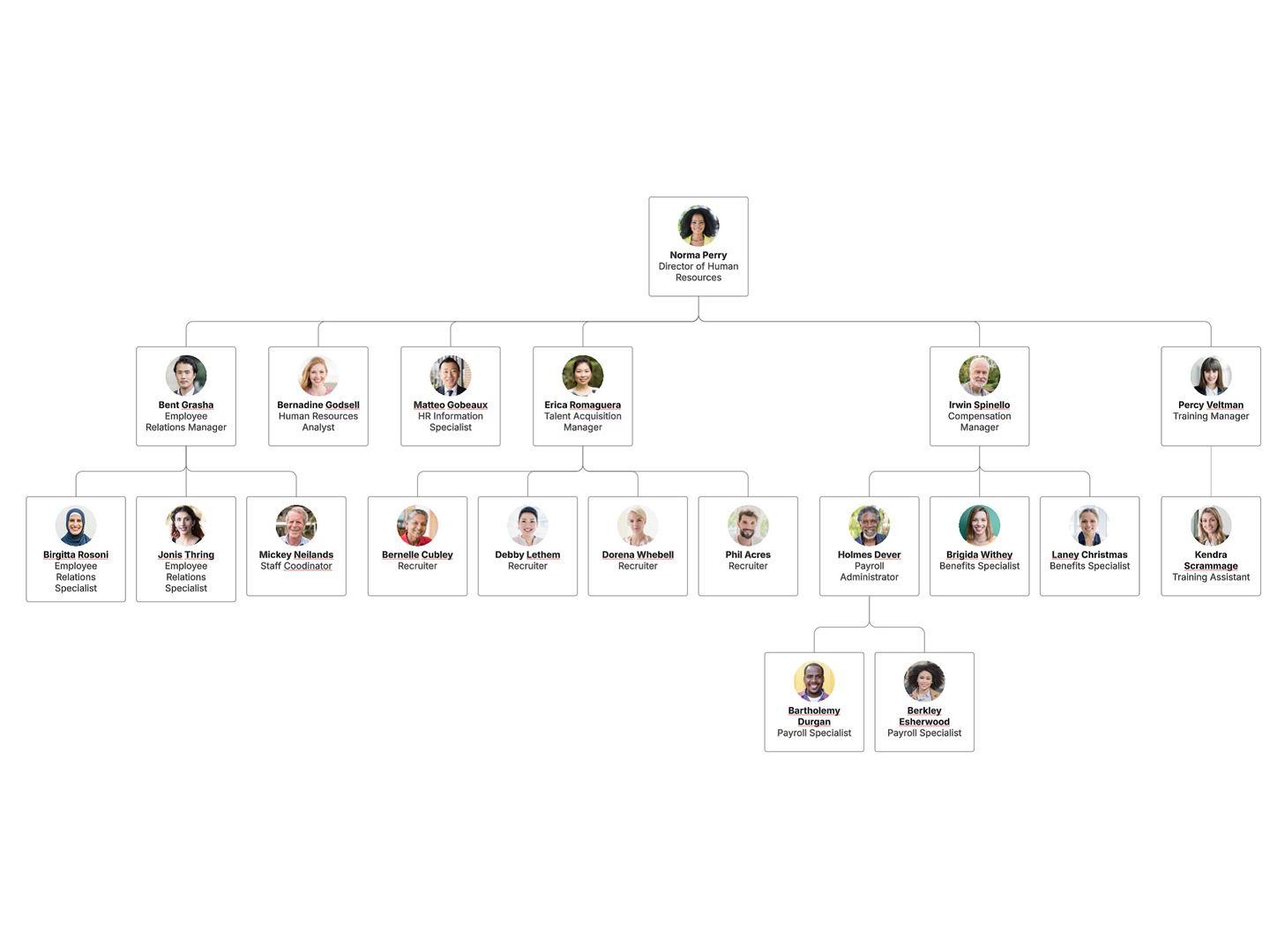
Key takeaways
You can build an organizational chart in Microsoft Excel, Word, or PowerPoint, or Lucidchart, but only Lucidchart auto-generates and updates charts from live data.
To get started in Lucidchart, enable the org chart shape library, then drag a shape onto the canvas. Or, import an existing file to automatically build a full chart.
Refresh or replace data, group view, filters, and conditional formatting features keep a Lucidchart org chart accurate as your organization changes.
Lucidchart add-ins let you drop a finished org chart straight into Excel, Word, or PowerPoint.
Making an org chart is a great way to organize a complex organization into a simple structure. You can build one in Microsoft Excel, Word, or PowerPoint, or create an org chart in Lucidchart, the intelligent diagramming solution. This guide walks through each option step by step.
New to the topic? Learn more about organizational charts before you start.
How to make an organizational chart in Lucidchart
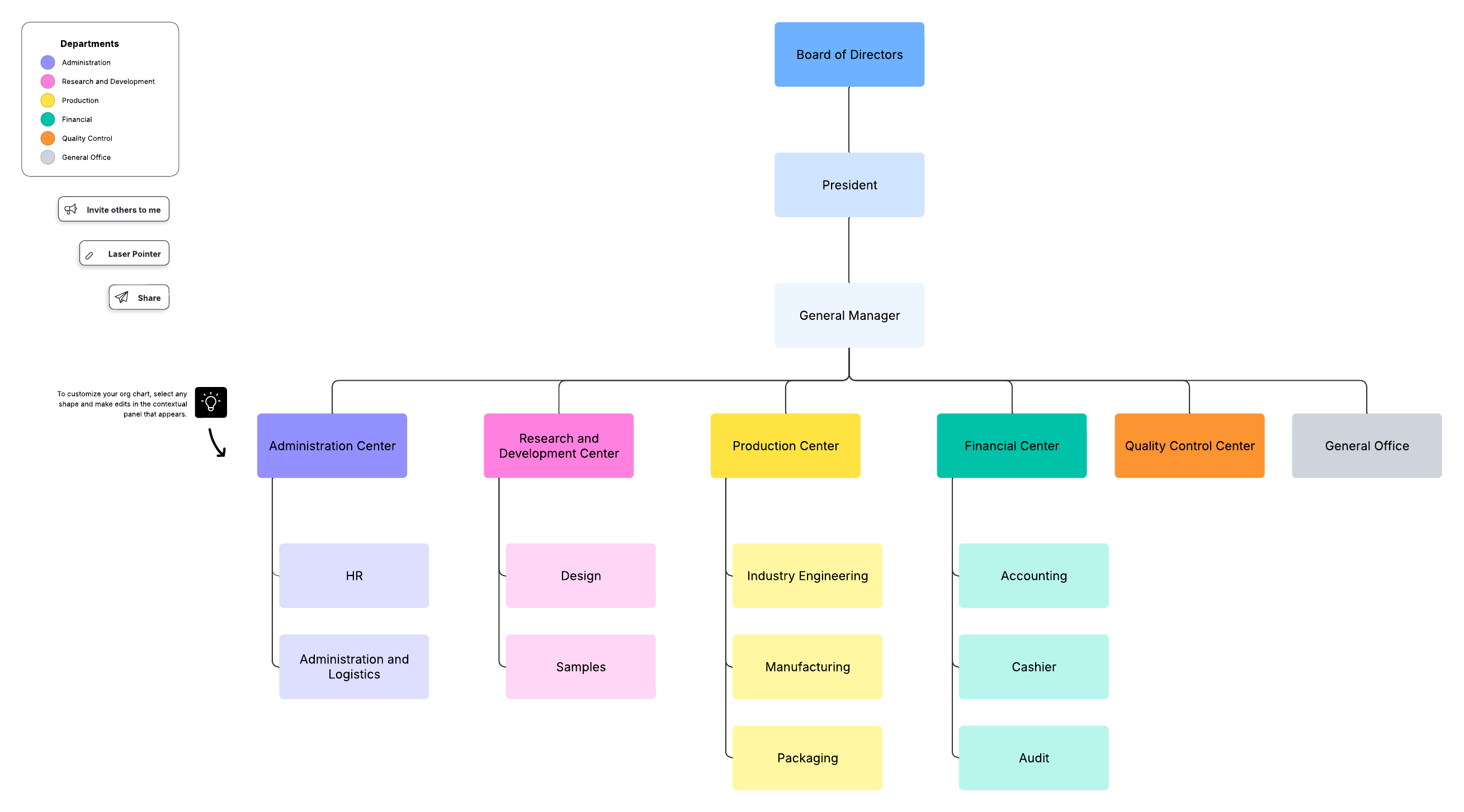
Lucidchart provides options for creating an organizational chart. You can either build a chart manually with shapes or generate one automatically from a data source. Start from a blank canvas or an org chart template.
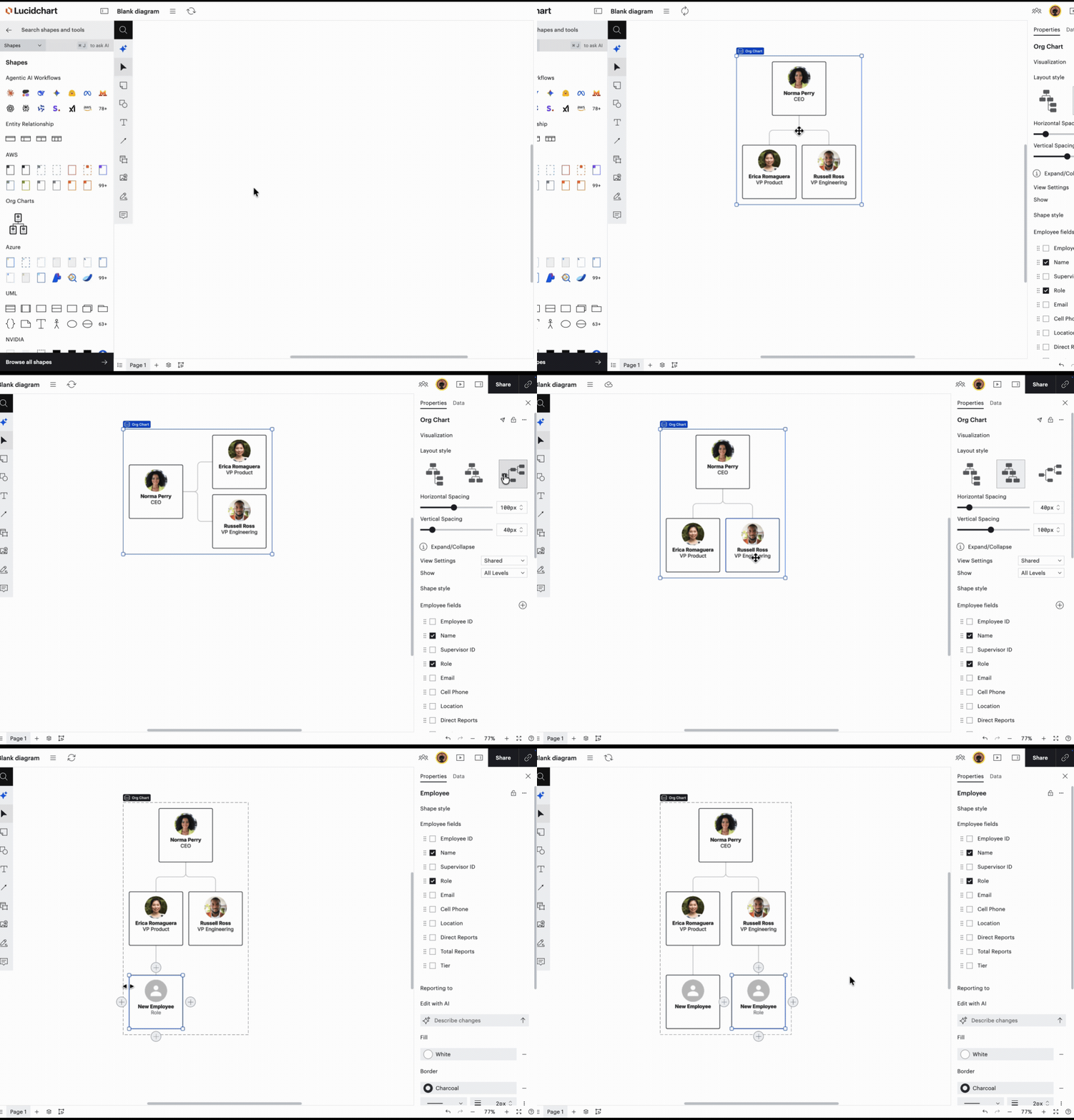
Adding org chart shapes
Add the org chart shape library, then drop shapes onto the canvas to represent your team.
In the Shape menu, select Browse all shapes.
Type "org chart" in the search bar.
Check the box next to the org chart library.
Click Use selected shapes.
Drag an org chart shape onto the canvas.
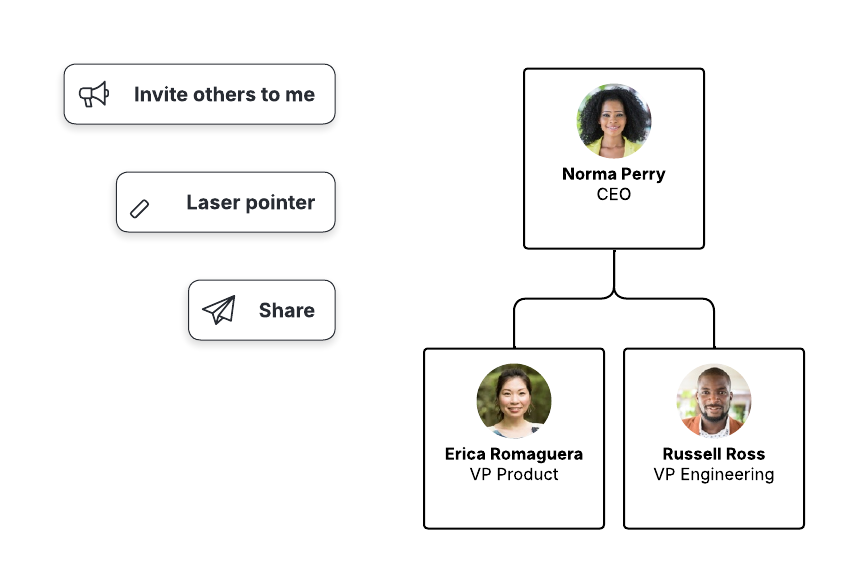
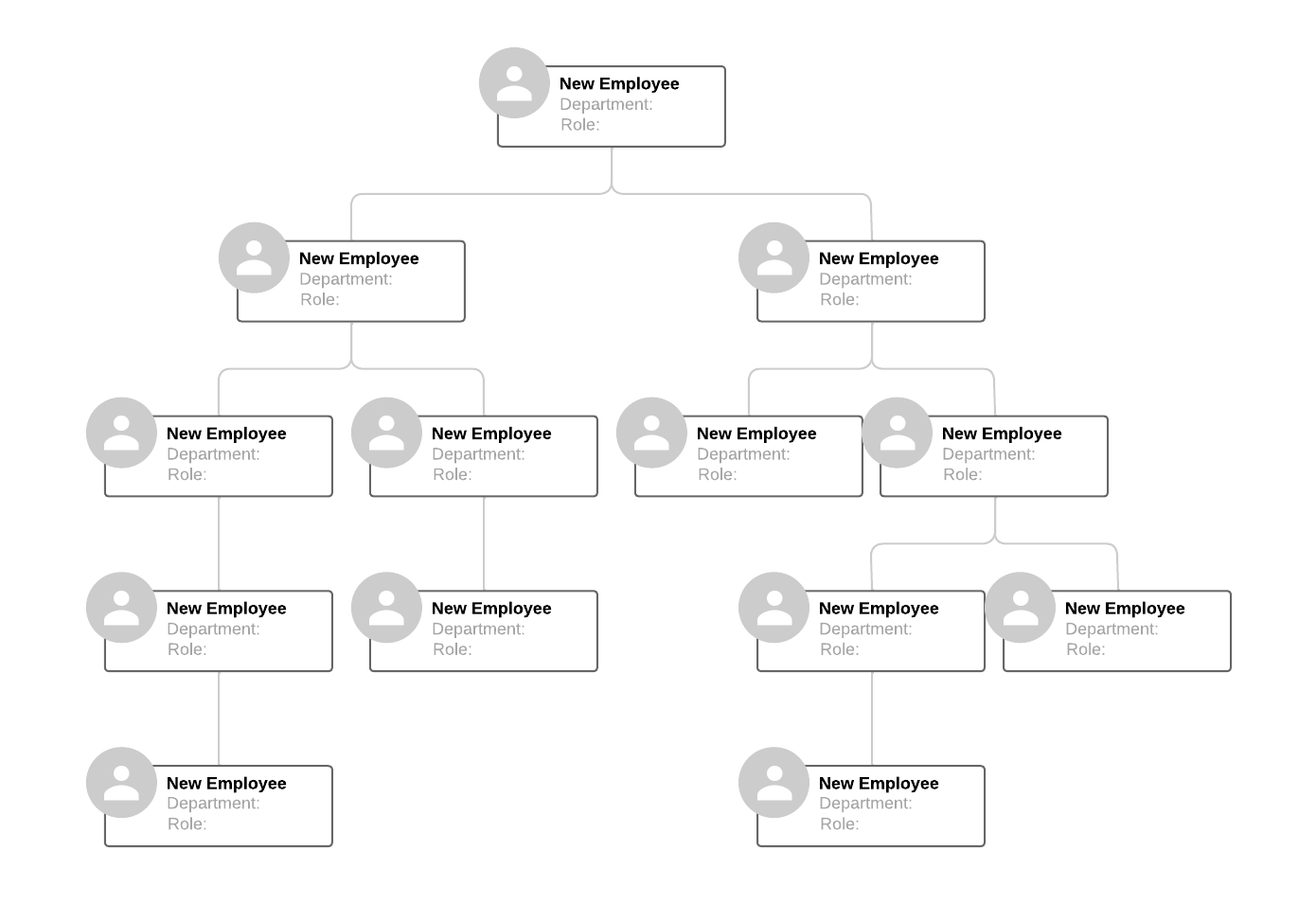
Add one shape per person and connect them from the top down. Any hierarchical shapes work here.
Start with the highest role, such as the CEO or team lead.
Click the + buttons around a shape to add direct reports.
Or open the right panel and use Data > List View to add employees in a list.
Drag shapes to rearrange people. Lucidchart adjusts spacing and connector lines automatically.
When a chart includes five or more shapes that each carry an employee name and title, Lucid prompts you to convert them to official org chart shapes.
Adding employee information to each shape
Click a shape to edit its details, then choose which fields display.
Click any shape to enter a name, role, contact details, or location.
Open the right panel to add or remove employee fields.
Choose fields from a preset list or create custom fields for your team.
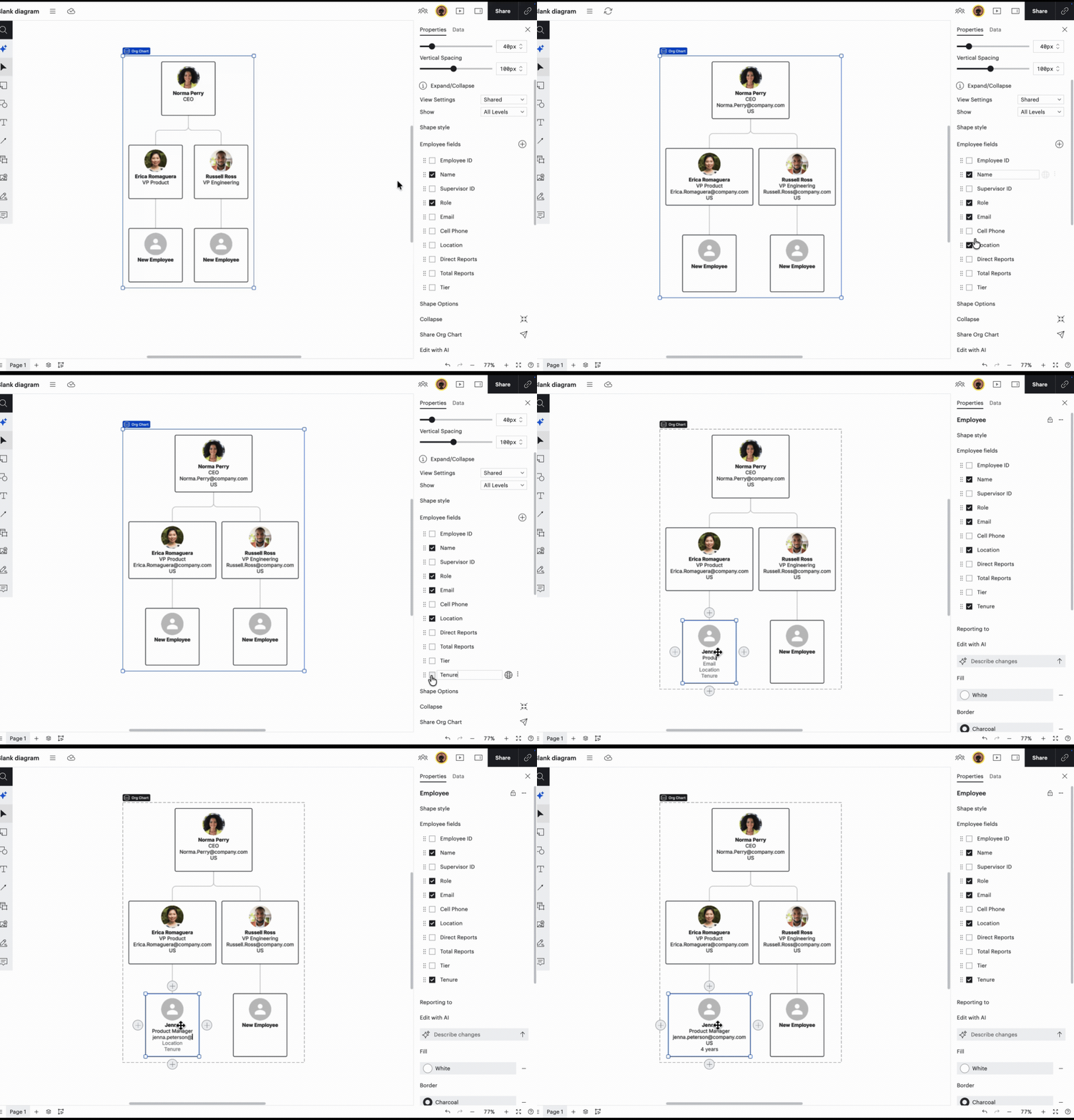
For a full walkthrough, see our Create an org chart, opens in a new tab help center article.
Generating an org chart from Excel or other data
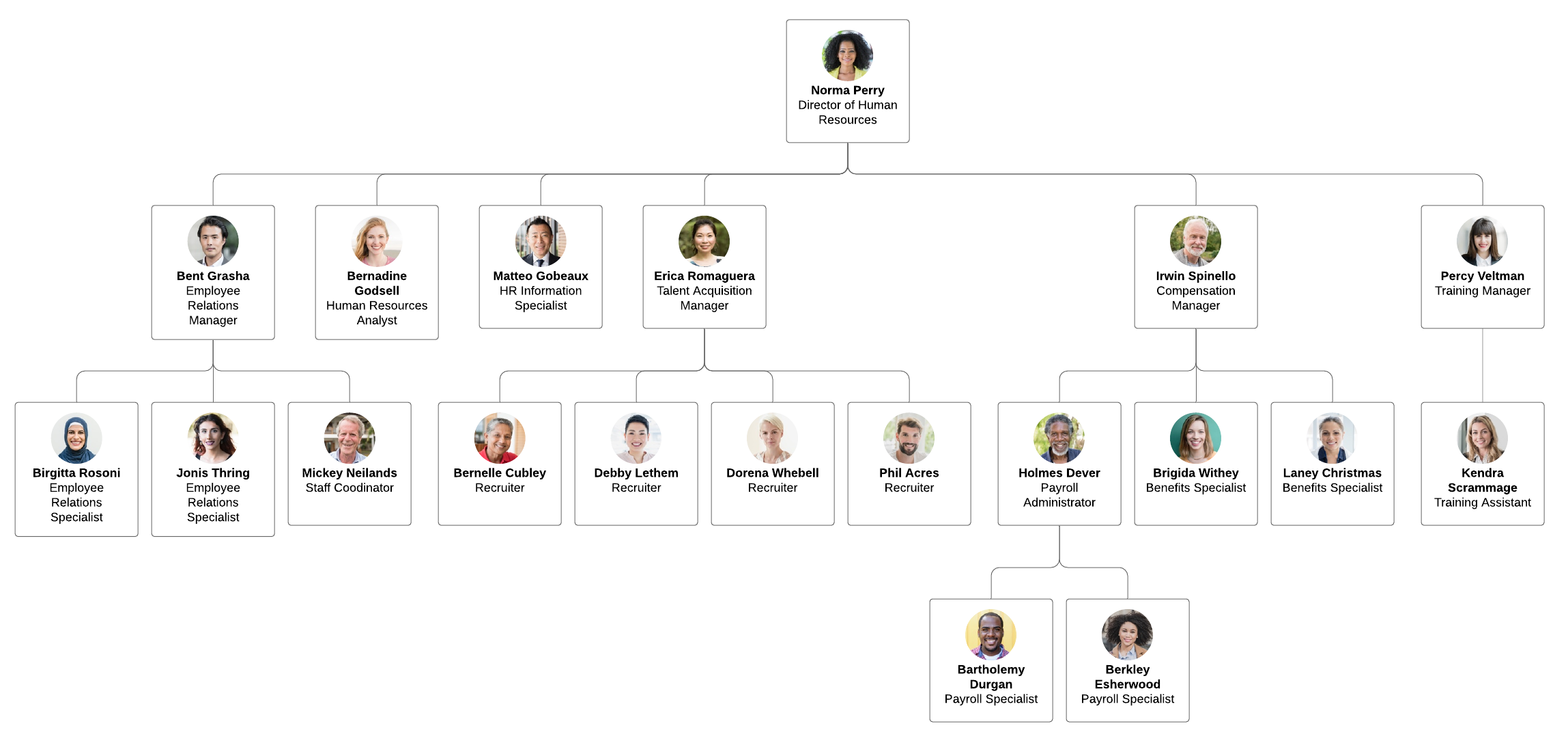
Import a dataset, and Lucidchart will build the chart for you. You can import data, opens in a new tab from a CSV file, an Excel file, a Google Sheet, or BambooHR. Map each employee to their manager, and Lucidchart automatically draws the reporting lines.
Keeping a Lucidchart org chart up to date
Use built-in data tools so your chart reflects your organization as it changes.
Refresh or replace data, opens in a new tab to pull in the latest roster.
Turn on group view , opens in a new tabto organize members by team or function.
Apply filters, opens in a new tab to surface people by criteria such as department or location.
Add conditional formatting, opens in a new tab to highlight teams, open roles, or reporting gaps.
Short on time? With Lucid AI, opens in a new tab, you can draft a starting chart from a text prompt in seconds and then refine.
How to create an org chart in Lucidchart videos
This video shows how to manually build an org chart in Lucidchart using shape libraries and by importing spreadsheet data. It also covers customizing the layout, applying conditional formatting, and adding custom fields.
How to create an org chart in Lucidchart
In this video, see the ins and outs of creating an org chart in Lucidchart from choosing between manual build or data import to adjusting imported charts and adding informal reporting lines.
A video explaining how to start creating an org chart in Lucid
How to make an org chart in Excel
Including org charts in an Excel spreadsheet can help viewers make sense of complex data. To do so, follow these steps:
Go to the Insert tab, click SmartArt, and choose a layout from the Hierarchy group.
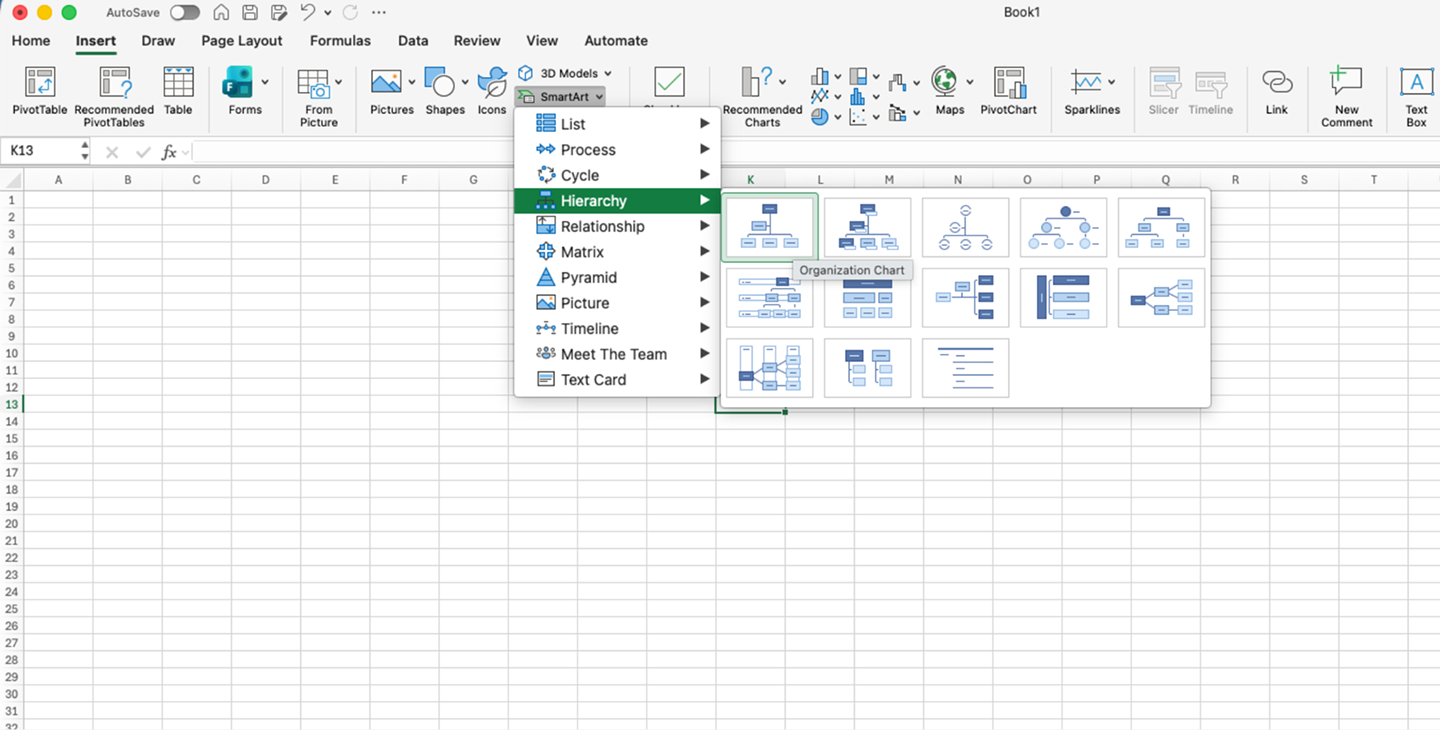
Click into any shape and enter text for each person.
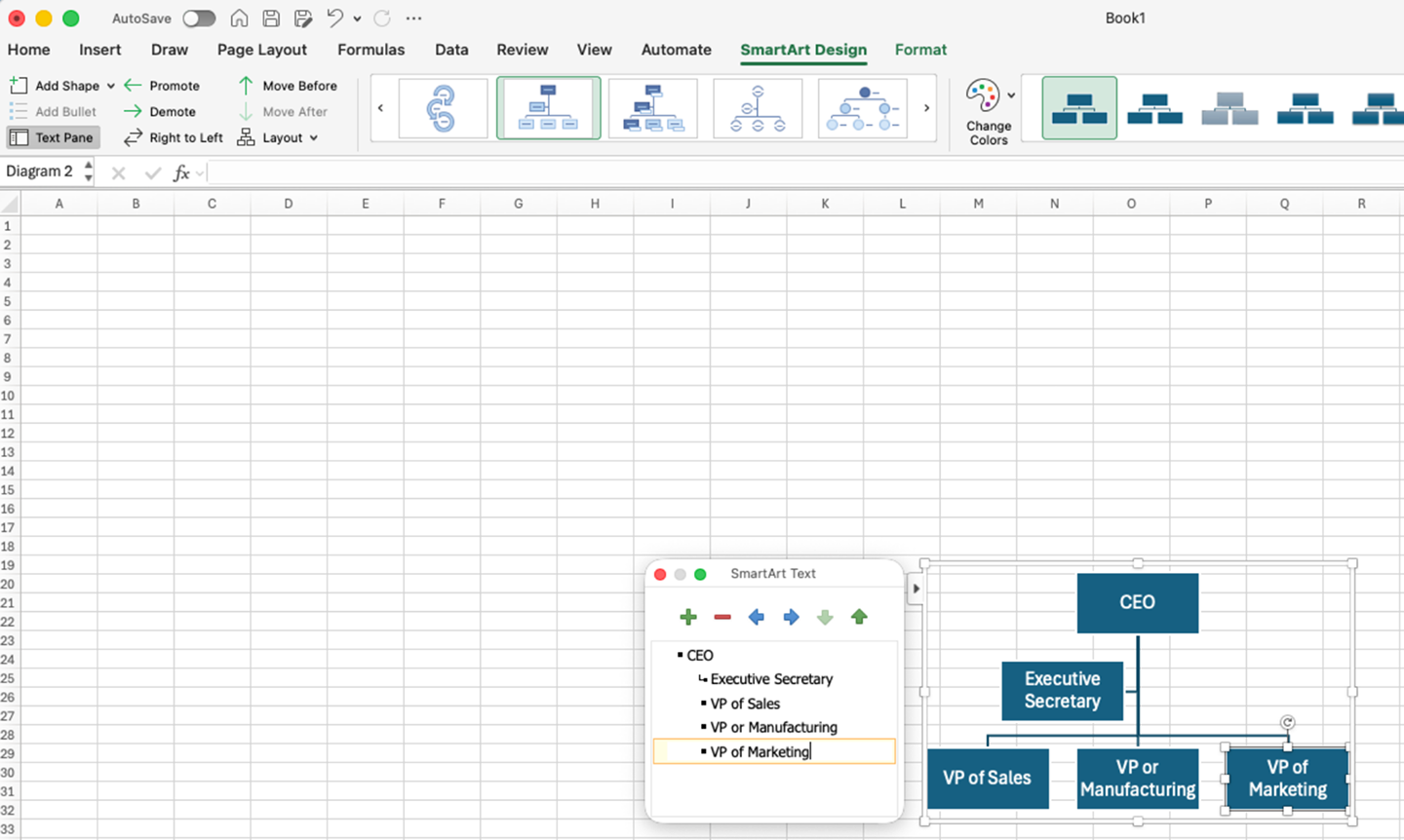
Use Promote and Demote in the SmartArt Tools Design tab to shift people across levels.
Use Move Before and Move After to reorder people horizontally.
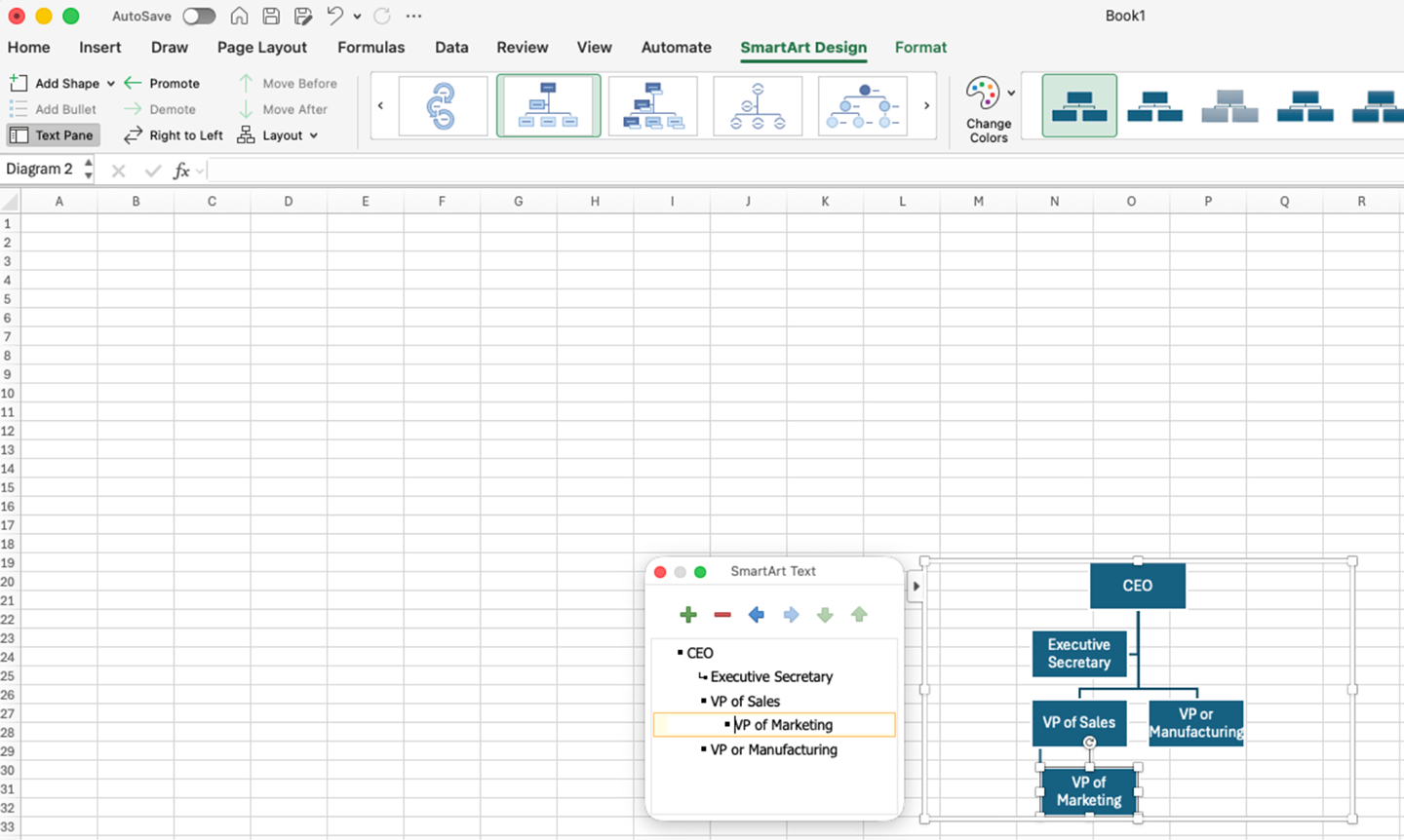
Click Add Shape in the SmartArt Tools Design tab to add roles.
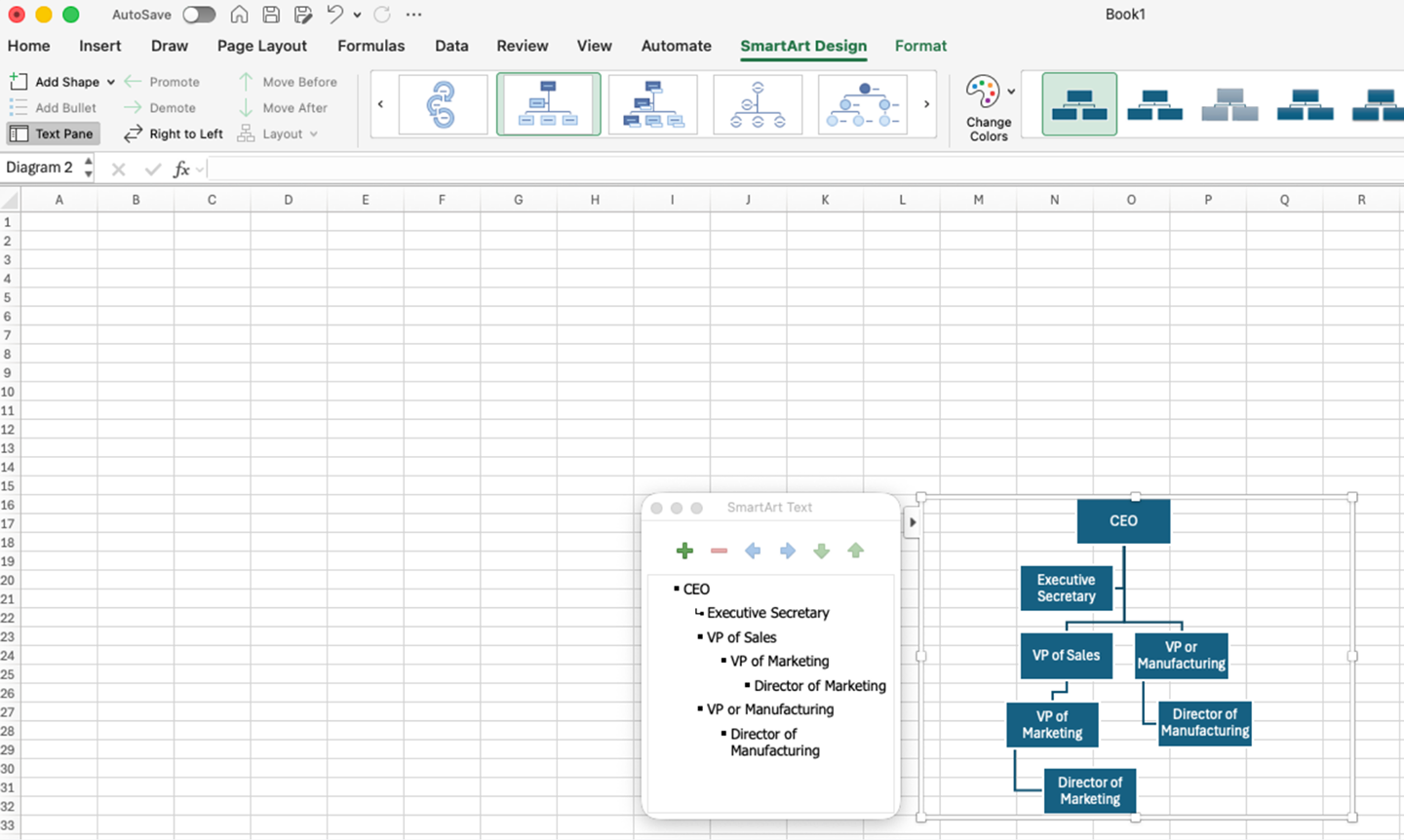
Format colors, fonts, and sizes through the SmartArt Tools Design and Format tabs.
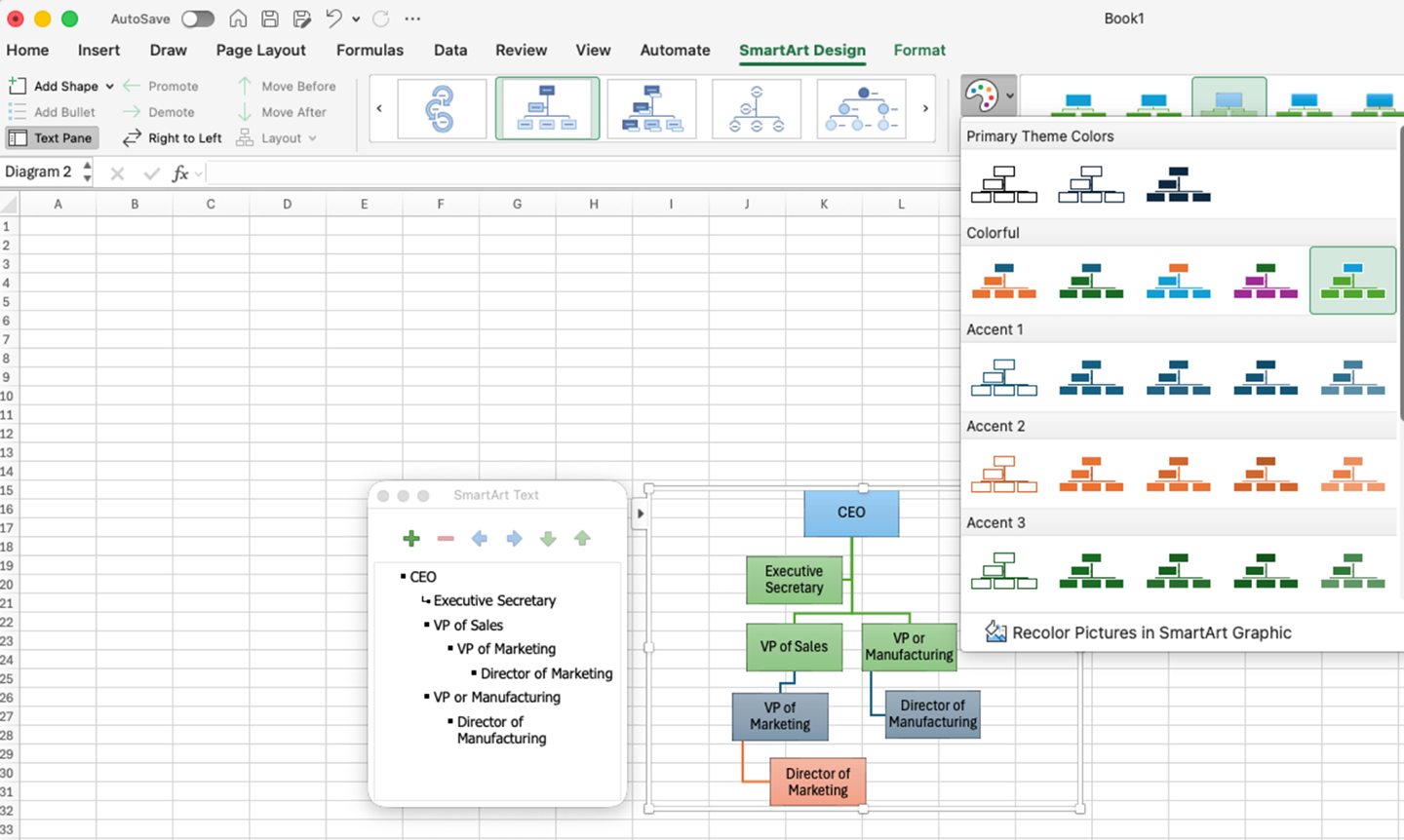
Excel stores little beyond a person's name, so it is well-suited to small, static charts rather than detailed employee records.
Insert a Lucidchart diagram in Excel
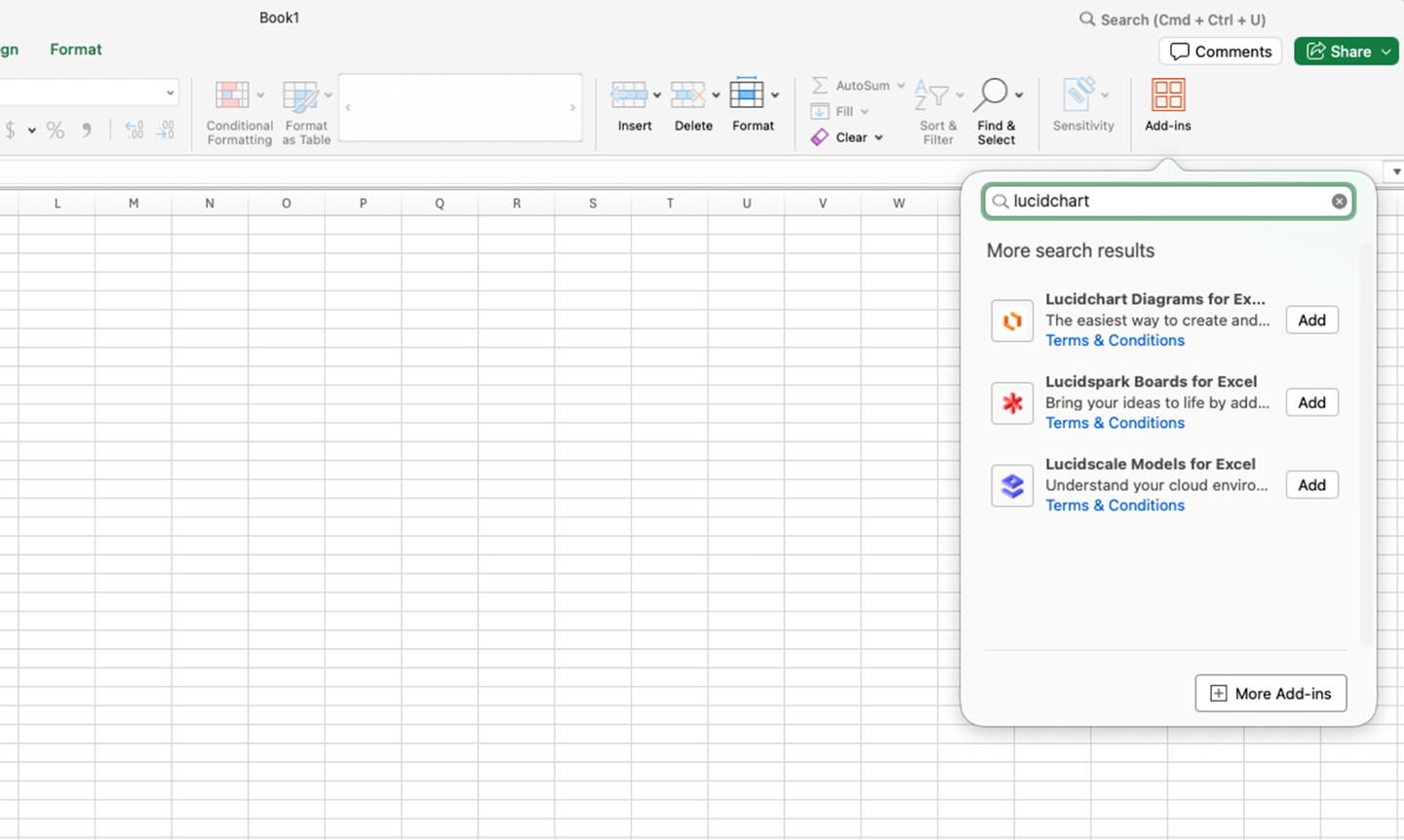
Use the Lucidchart add-in to place a finished org chart inside a workbook.
In Excel, go to Home > Add-ins.
Search for Lucidchart in the Add-ins store.
Click Add, then insert an existing chart or create a new one after you log in.
How to make an organizational chart in Word
Word also uses SmartArt, which is the fastest way to draw an organizational chart in Word.
Go to the Insert tab, click SmartArt, and choose a layout from the Hierarchy group.
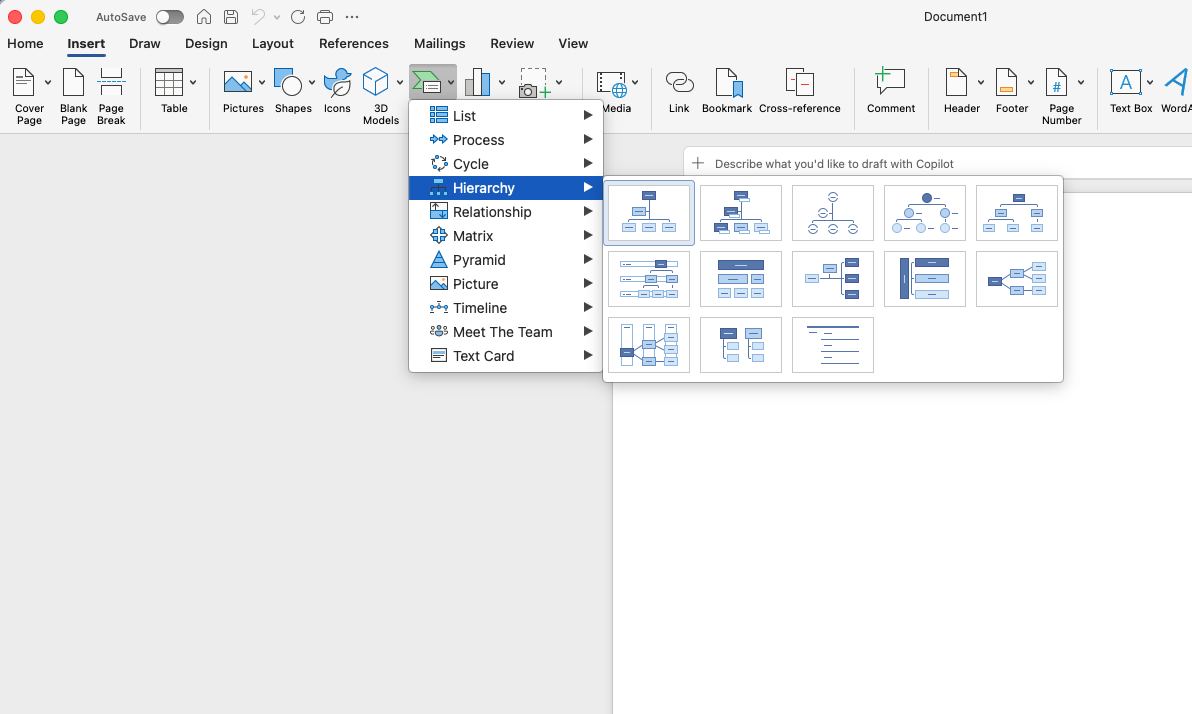
Enter text for each shape in the pop-up text panel.

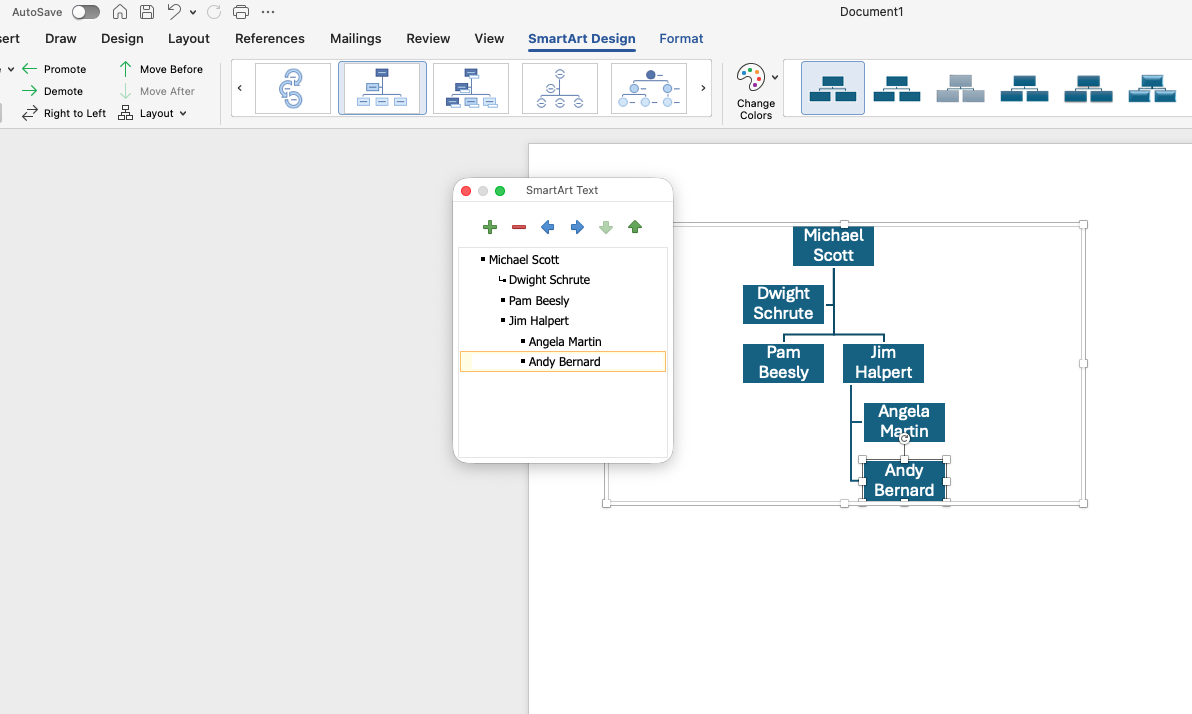
Use the arrows and the + and - keys in the SmartArt Text box to change shape hierarchy.
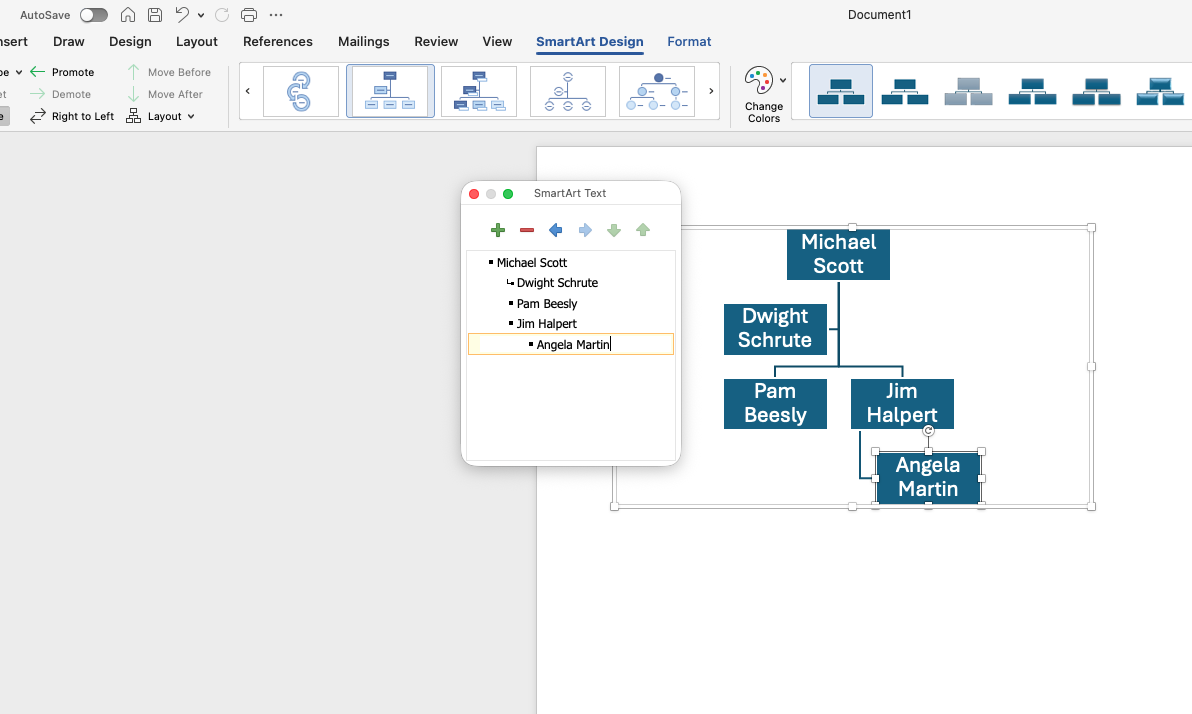
Click Add Shape in the SmartArt Tools Design tab to add roles.
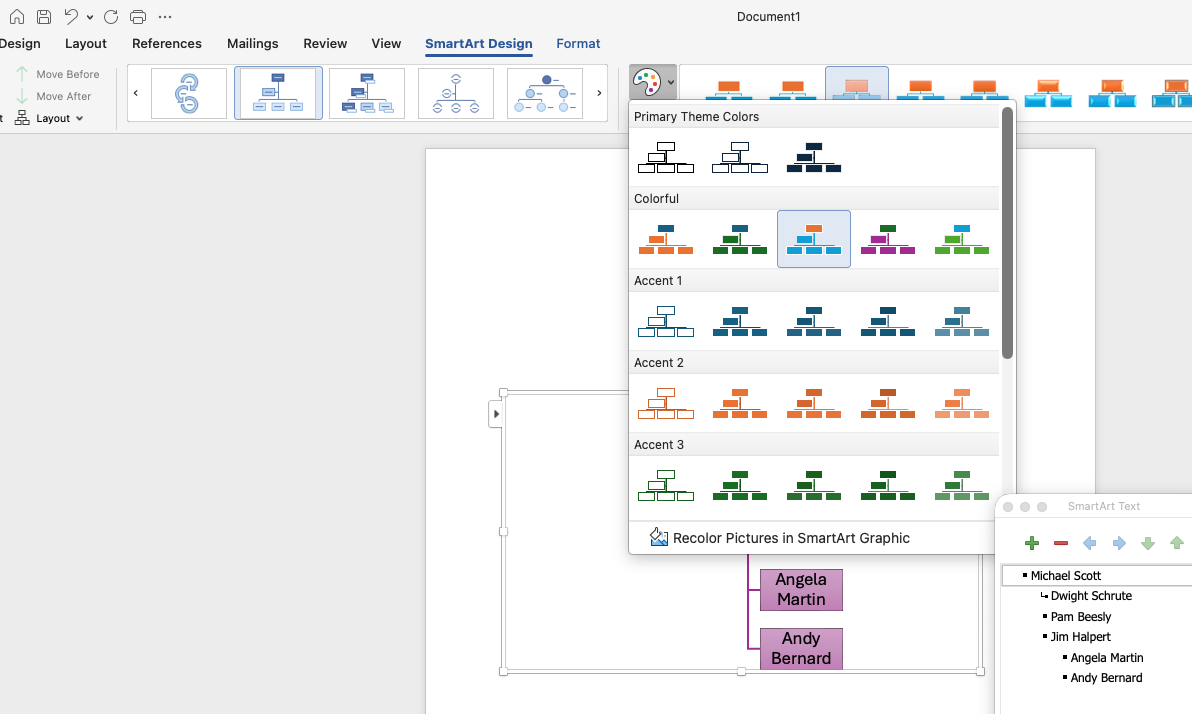
Format colors, fonts, and sizes through the SmartArt Tools Design and Format tabs.
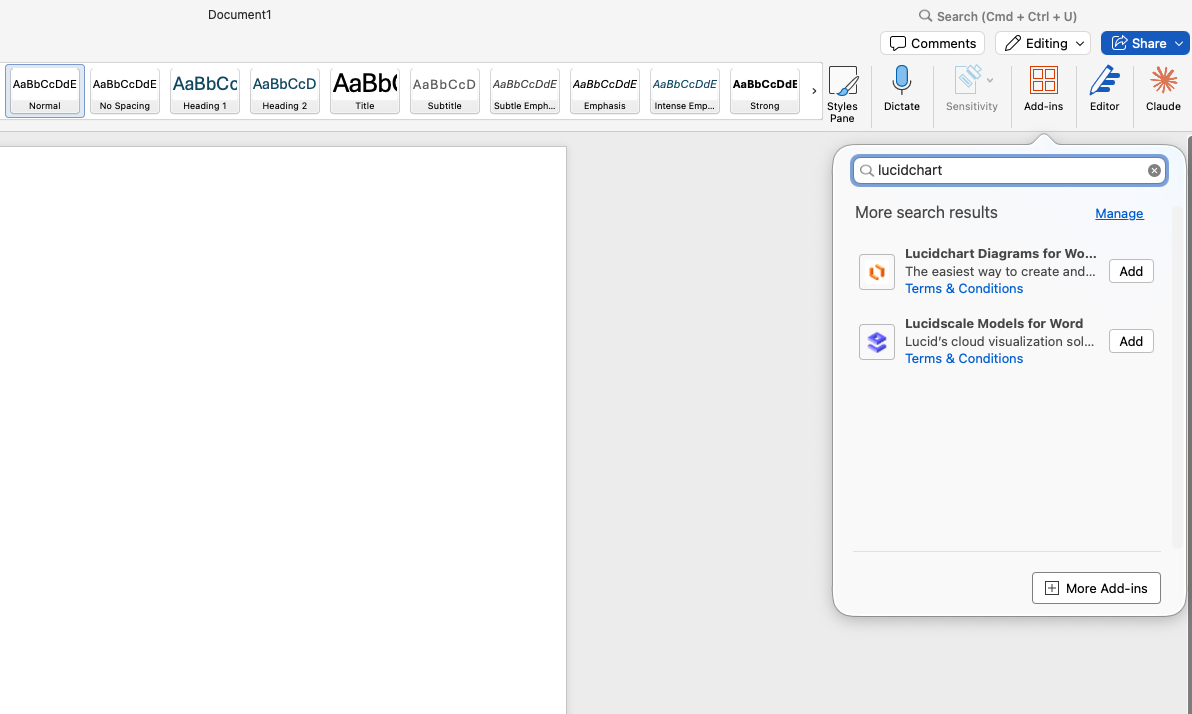
Insert a Lucidchart diagram in Word
Use the Lucidchart add-in to embed a chart directly in a document.
In Word, go to Home > Add-ins.
Search for Lucidchart in the Add-ins store.
Click Add, then insert an existing chart or create a new one after you log in.
How to make an org chart in PowerPoint
The diagramming functionality in PowerPoint is limited. Follow these instructions to build one for a presentation or slide deck.
Go to the Insert tab, click SmartArt, and choose a layout from the Hierarchy group.
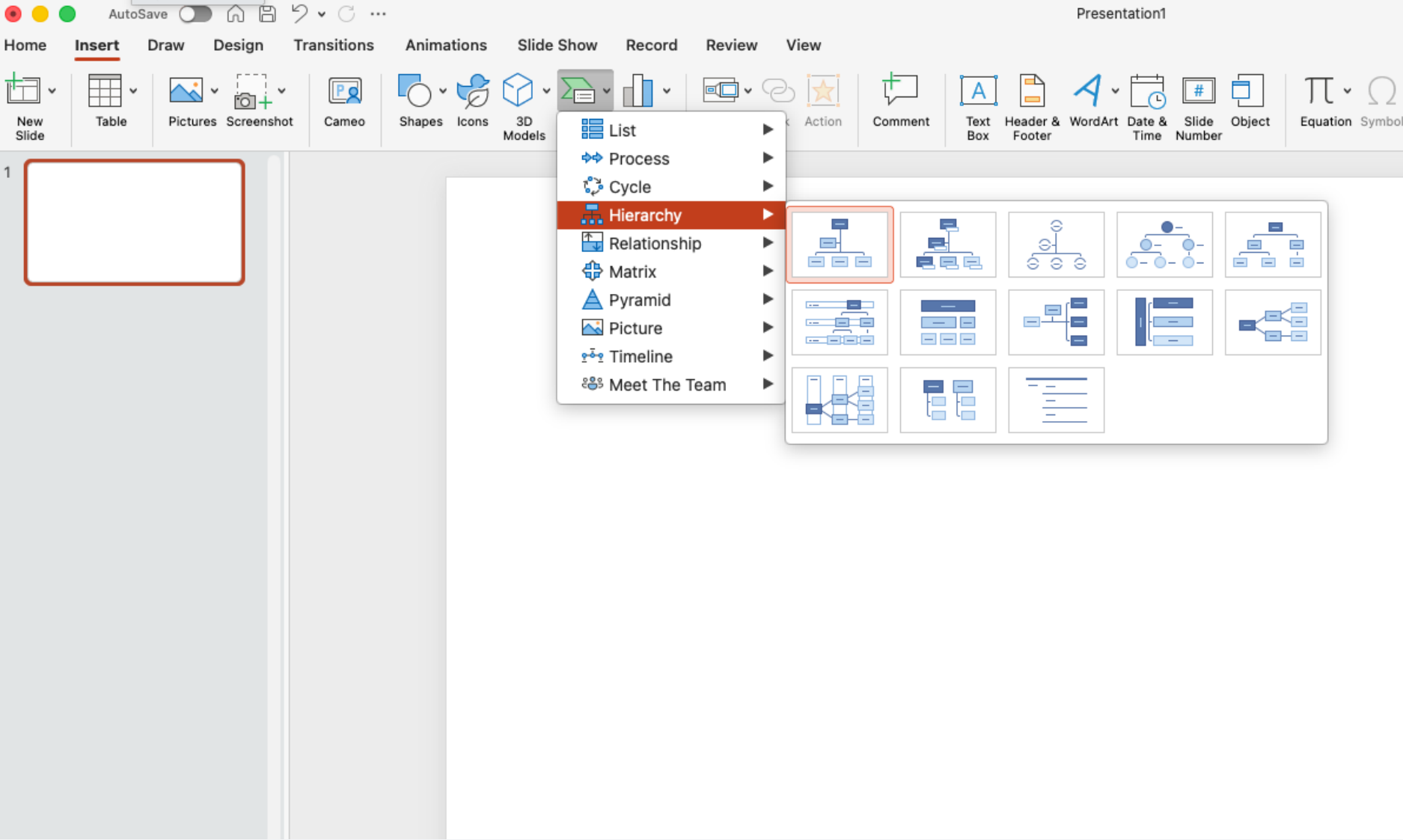
Click into each shape and enter text.
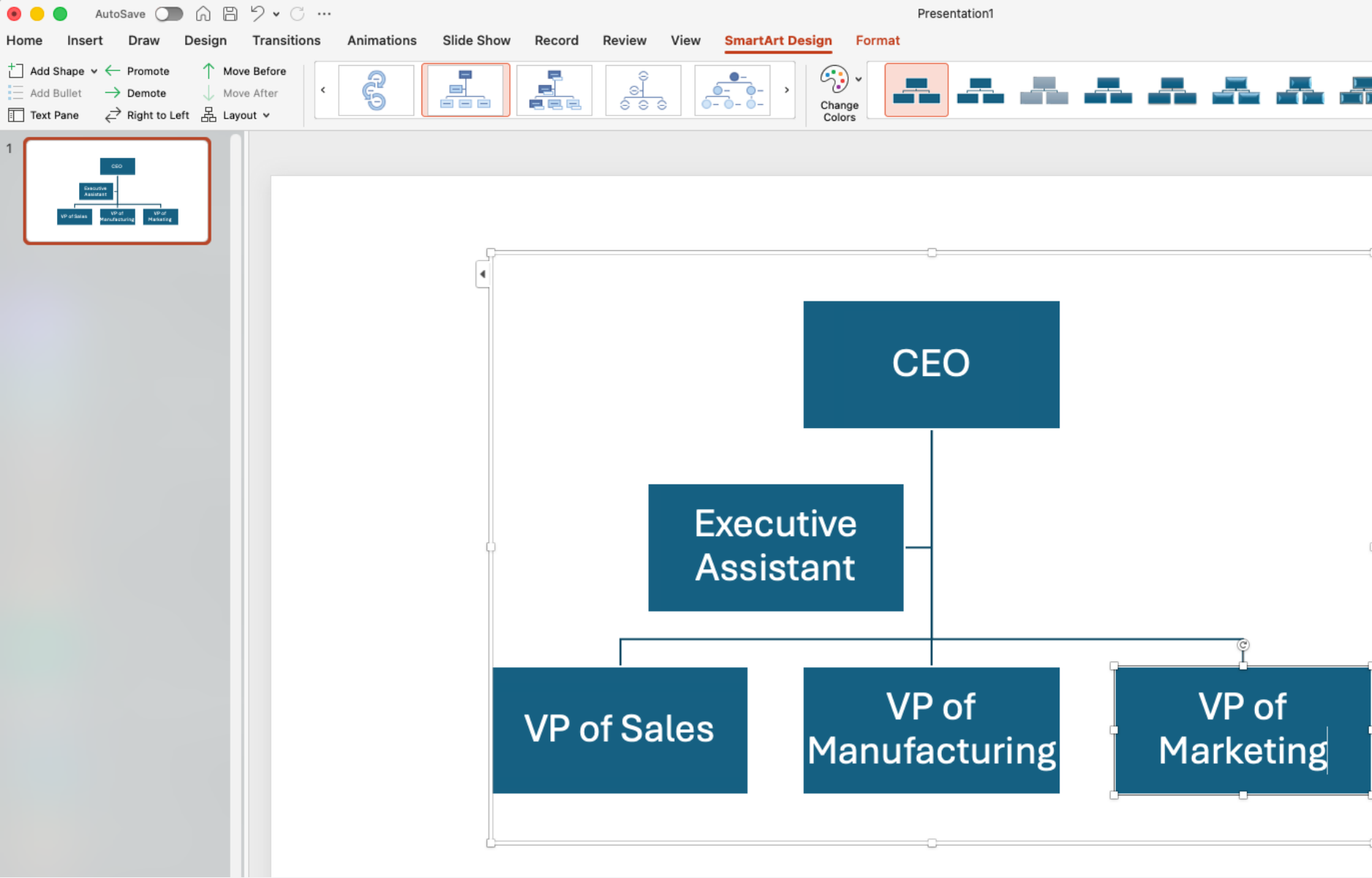
Click Add Shape in the SmartArt Tools Design tab to add roles.
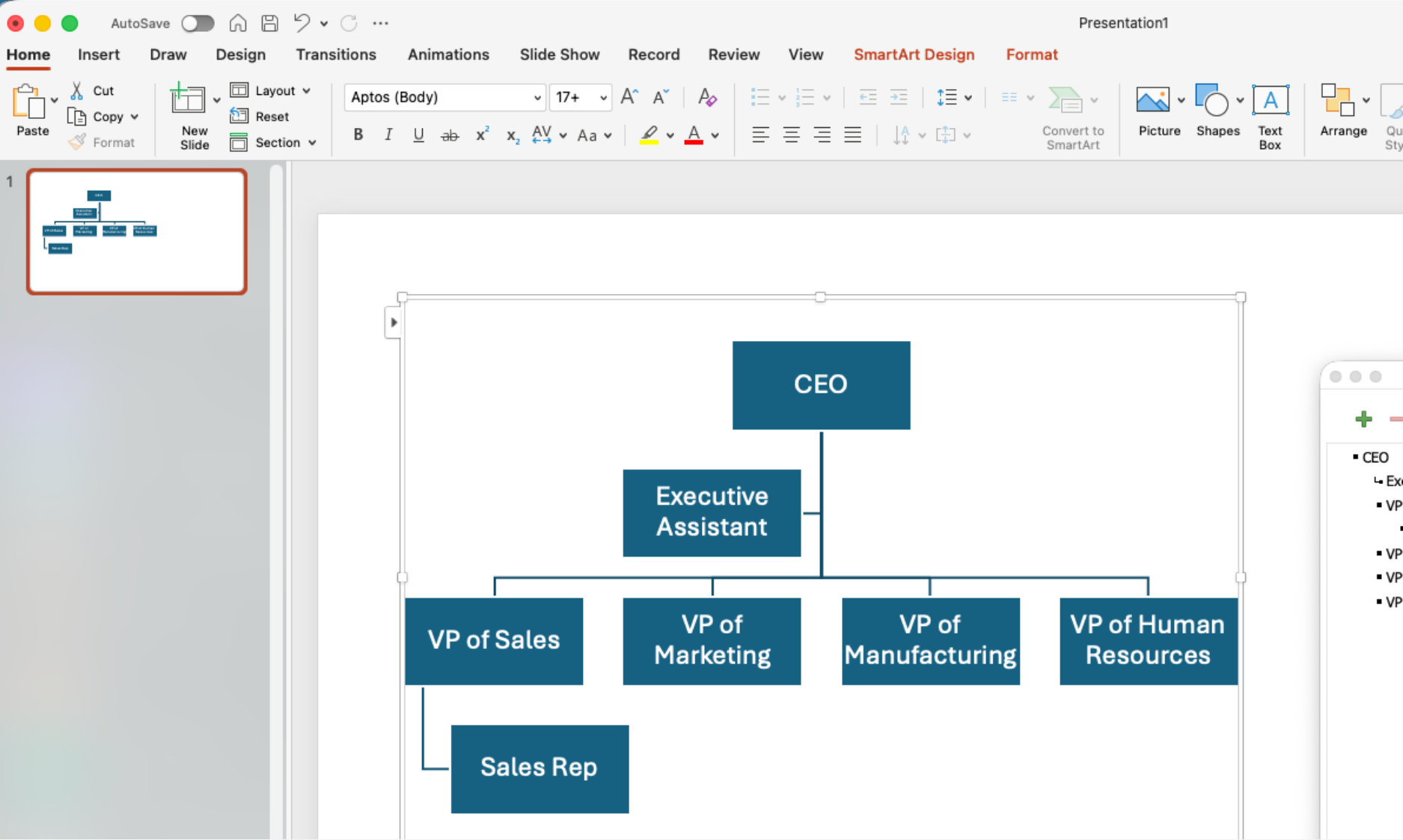
Use Promote and Demote to change levels in the hierarchy.
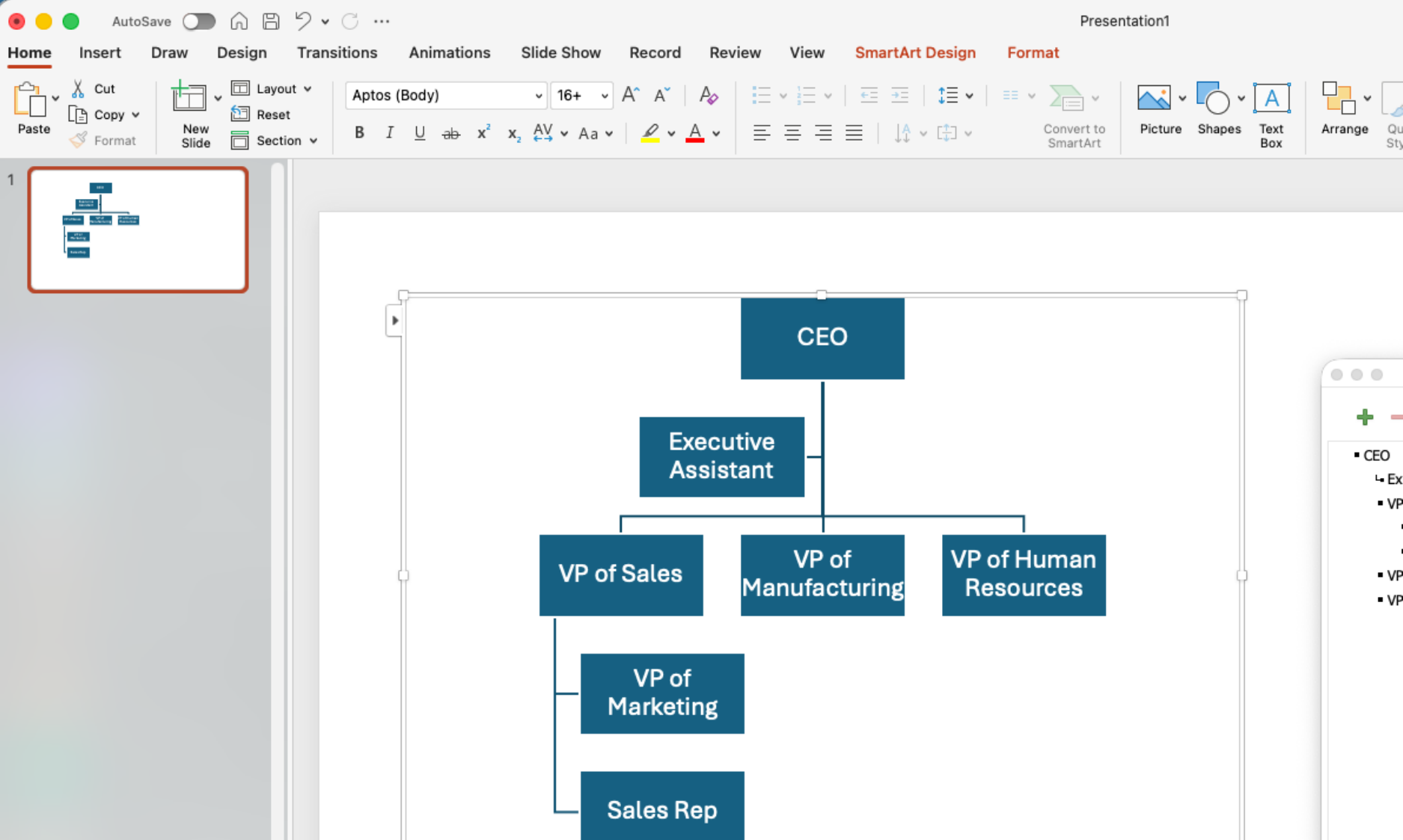
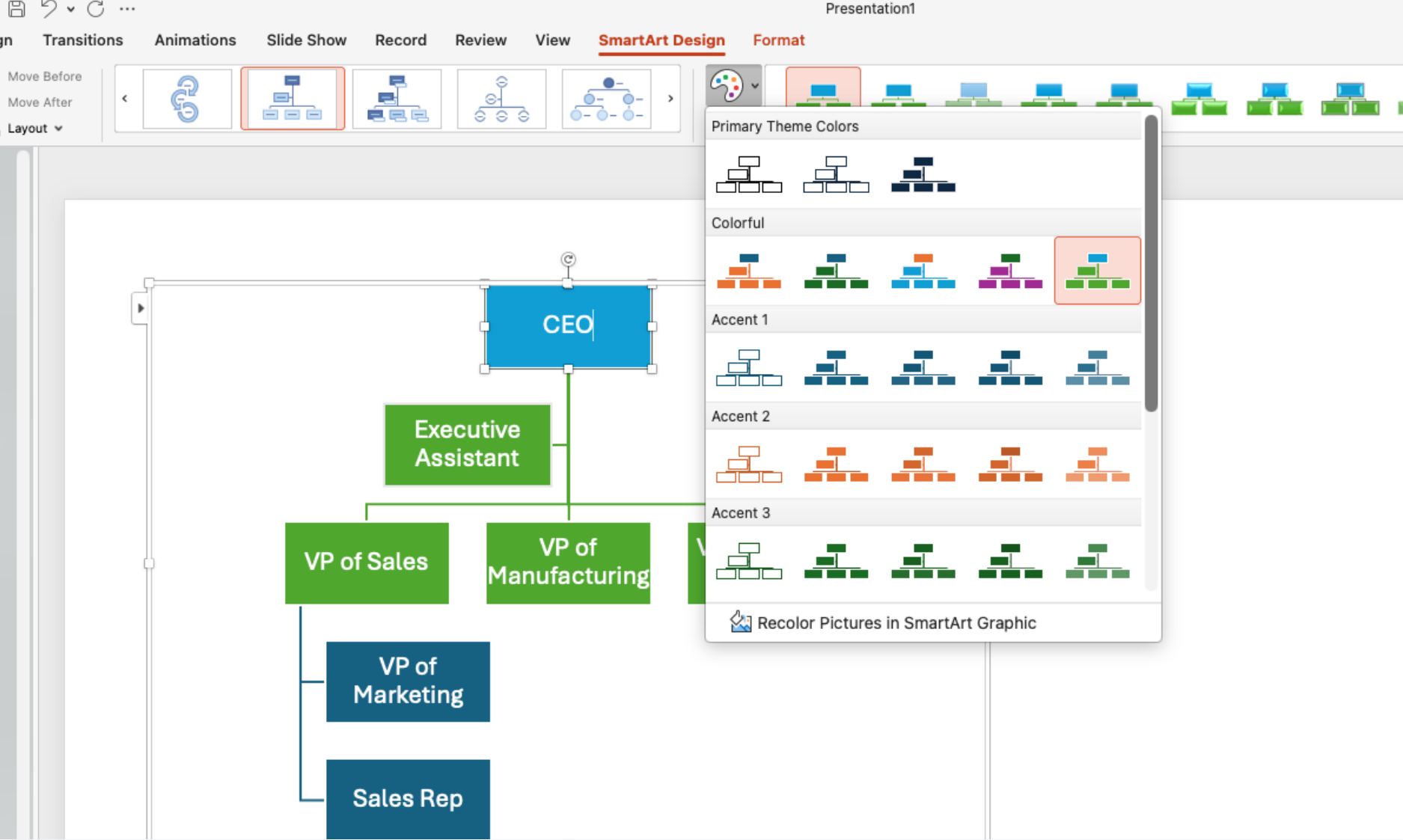
Format fonts, colors, and layout styles from the tools at the top of the screen.
Insert a Lucidchart diagram in PowerPoint
Use the Lucidchart add-in to add a chart to your slides.
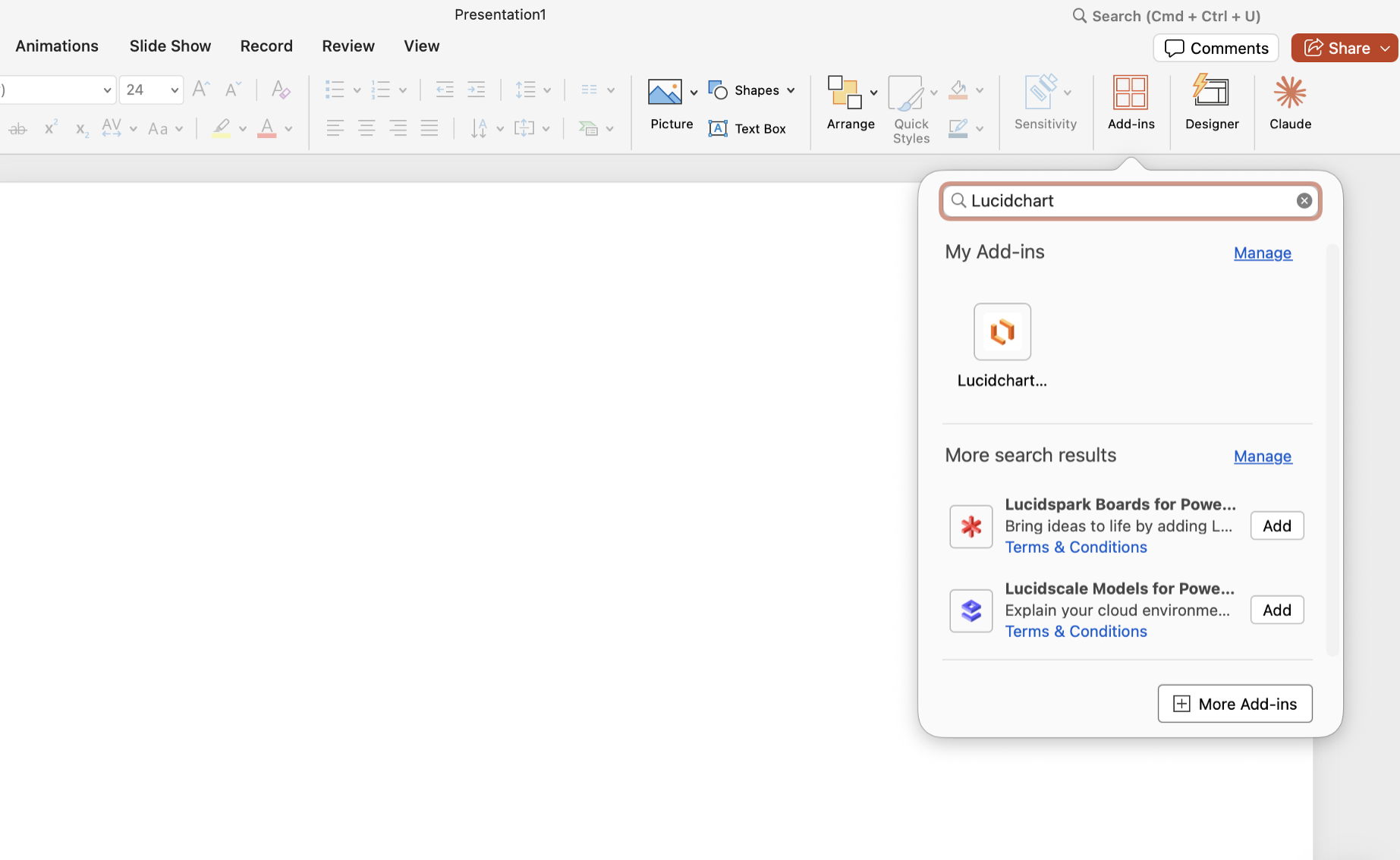
In PowerPoint, go to Home > Add-ins.
Search for Lucidchart and install the add-in.
Insert an existing org chart or create a new one after you log in.
Whether you’re looking to add org charts into Microsoft Excel, Word, or PowerPoint, Lucidchart offers an easy solution for polished charts.