Even though Microsoft Word is a word processor, not a diagramming program, it is still possible for users to add shapes and create flowcharts. Follow this guide to edit and make flowcharts in Word.
How to make a Flowchart in Word
It’s undeniable that creating a flowchart in Lucidchart and then inserting it into your Microsoft Office applications, opens in a new tab using the Add-Ins is the most efficient way to incorporate flowcharts into your Word documents. However, it’s still possible to make a flowchart in Word directly and this helpful guide will show you how.
1. Open a blank document in Word
2. Add shapes
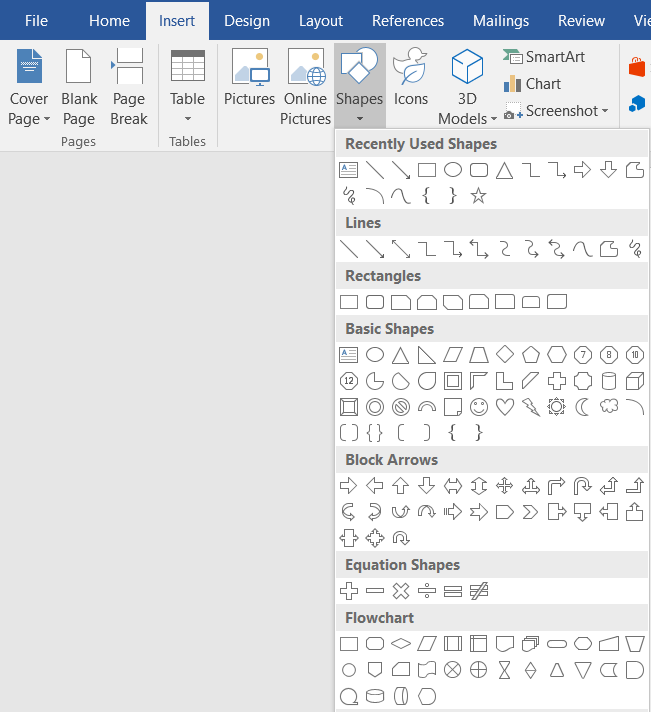
To begin adding shapes to your flowchart in Word, you have two options. Begin by going to the Insert tab within the Ribbon and choose SmartArt or Shapes. SmartArt graphics are pre-made collections of shapes within a gallery. The Shapes tool provides a basic selection of shaped objects that can be inserted and edited onto the document.
Adding symbols via SmartArt in Word
A gallery box will pop up when you select SmartArt from the Insert tab. We recommend clicking Process for flowchart-specific options from the left panel in the dialog box, but keep in mind that you are by no means limited to this option and are free to use whatever SmartArt graphic is best for your specific needs. You will then click the SmartArt selection you want to use and a preview of that flowchart graphic will appear in the right panel, along with an explanation of its logic. Click OK to insert the selected graphic into your document.
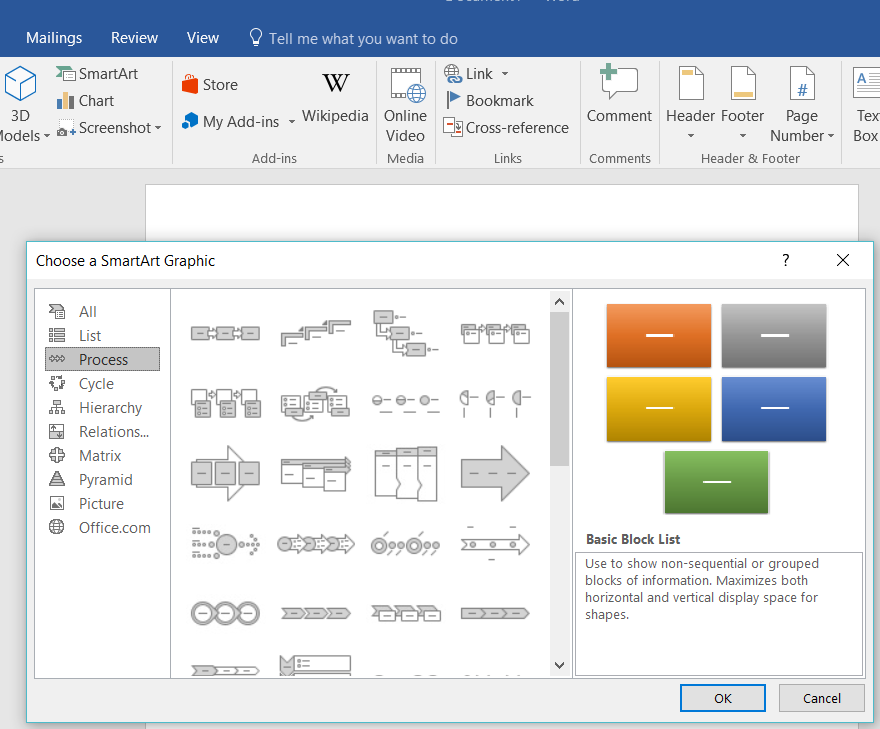
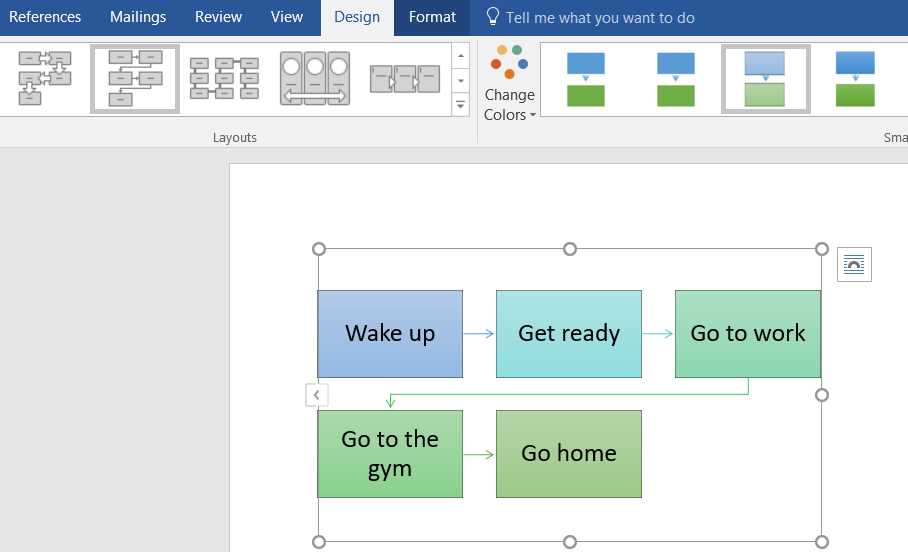
To replace your graphic with SmartArt at any time, select it and press Delete. You can then click the SmartArt Graphics (Insert > SmartArt) and choose a different chart type. If you prefer to change the layout of a SmartArt graphic, select the shape(s) and select a new style from the Design tab within the Ribbon menu. Rest assured that you can edit the SmartArt chart layout at any time without losing any text.
From the Design tab, you can then continue to add flowchart shapes and connect them with lines until your flowchart is ready. If you find yourself lacking in shape options, you will need to manually add a shape from within the Design tab. To do this, select the shape (or entire chart in some cases) nearest to where you want to add a new shape. Then select Add a Shape.
Adding symbols via Shapes in Word
From the Insert tab within the Ribbon, select a flowchart shape from the dropdown gallery. You can then click and drag it to the size you want on the page to place it. Continue to add shapes and lines to complete your flowchart.
3. Add text
Add text to a SmartArt graphic by clicking the filler text and begin typing. Depending on how much text you add, the shape and font will automatically resize to fit.
For a Shape, add text by double-clicking the object and begin typing. To customize the font, use the toolbox that pops up when a desired shape is selected.

4. Add lines
To draw lines between shapes, click Insert > Shapes and select a line style. Then click and drag on the page to add a line.
5. Format shapes and lines
To really make this flowchart stand out in Word, you’ll want to do some final formatting. You won’t have as many options as you would in Lucidchart, but there’s still some significant room for customization when making a flowchart in Word.
For some of the simplest editing options, a menu will appear with basic editing options when you right-click on an object.
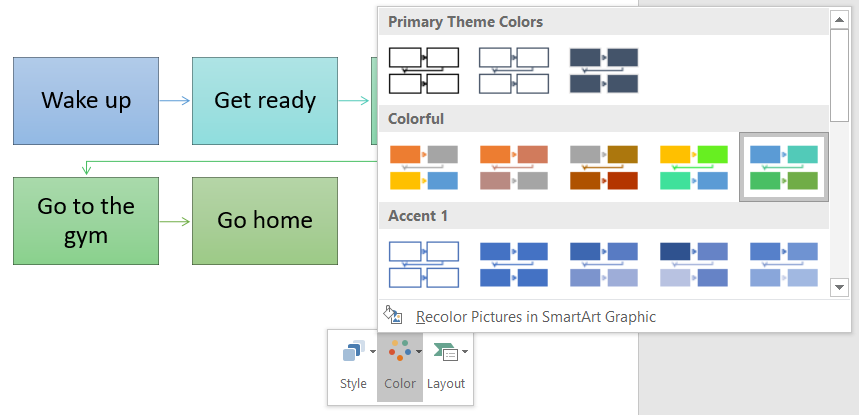
To edit text layout click the Layout Options icon that appears when you right-click a text box and pick your preferred layout. You can also view the rest of the option when you click See More.
Move a shape or lines anywhere on the Word document by simply clicking and dragging. If you’re trying to resize the image, just click and drag from a corner or edge and use the handle icon to rotate the shape.
If you select a SmartArt graphic:
Change the design of your shapes by selecting your objects and choosing an option from the two new tabs in the Ribbon, Format and Design.
If you select a shape:
When changing the design of an object that was placed using Shapes, the Format tab will appear when you select the flowchart shape to begin your modifications.
How to import a Lucidchart diagram into Word
As one can see, it’s certainly possible to make a flowchart in Word, but you may not be able to create more complex diagrams or process flows and share or collaborate efficiently due to the limitations of the program. However, with Lucidchart as your canvas, the possibilities are nearly endless due to the vast shape library, easy to use interface, and cloud backup with real-time collaboration features. If you want to add a flowchart into Word, Lucidchart is the modern solution.
- Download the MS Word Lucidchart Add-On, opens in a new tab if you haven’t already.
- Create a flowchart in Lucidchart. Use this guide to learn how to make a flowchart in Lucidchart, opens in a new tab if you need help getting started.
- Open your Word document, go to your Add-Ins and select Lucidchart within the Insert tab.
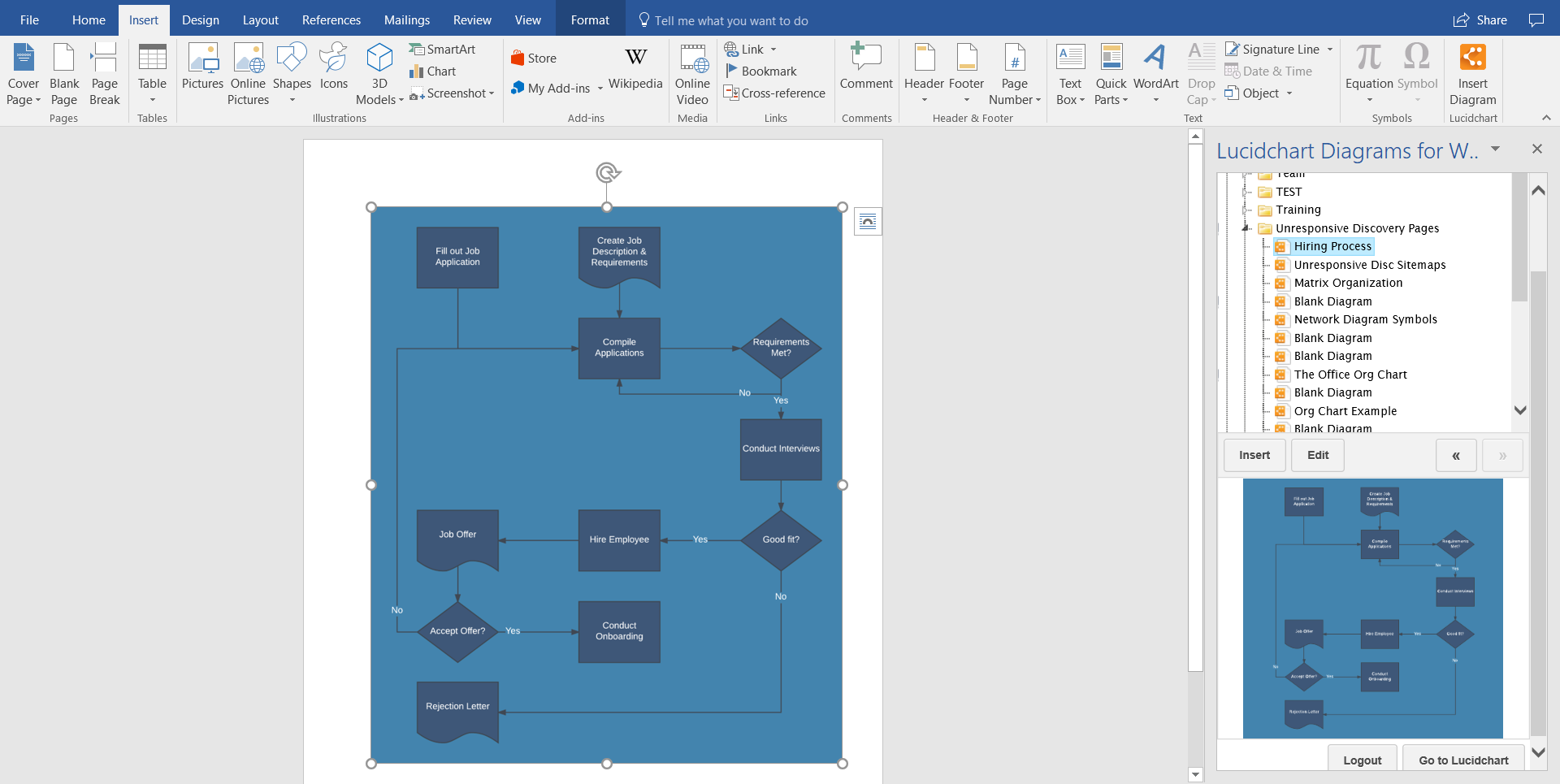
- 4. Select your flowchart from your documents to insert into your Word document.
You can build intricate flowcharts and every type of diagram in Lucidchart and add them to Word or edit them in real-time later in half the steps, clicks, and time it would take to make a flowchart in Word directly.
Making a flowchart in Word is possible if you’re looking to add a simple diagram to your document, but for more customization options and more features, build your flowchart in Lucidchart instead and use the Add-In to insert it into any MS Office programs. Use Lucidchart today!

Everything you need to make a diagram
Make a polished, professional diagram for free with Lucidchart. No matter what you have in mind, we have the tools you need to build it. Make an account and start diagramming today.
Sign up free