Key takeaways
-
Leverage AI diagramming for speed and prototyping. Lucid AI helps you quickly get your ideas out of your mind and onto the canvas.
-
Choose diagram templates for structure and standardization. Templates are a great middle ground for documenting processes, offering structure and customization.
-
Manually create diagrams for highly-specific use cases. When specificity is a top priority, creating a diagram from scratch may be a good option.
It’s a fact: Visuals are undeniably the most effective way to communicate. A study commissioned by Lucid revealed that 73% of knowledge workers agree visuals are extremely important when collaborating. Yet, the process of creating those visuals can feel like a big undertaking.
AI has now made it easier than ever to generate diagrams. With Lucid AI, teams can create complex visuals in seconds, saving countless hours. However, just because a diagram can be created quickly doesn’t mean it is always the best solution. So, when is generating a diagram with AI the right choice? When should you customize a template, or when is it better to create something from scratch?
This article will cover the scenarios for when to use each in Lucid, ensuring your next visualization can be created to its full potential.
Generate a diagram with AI
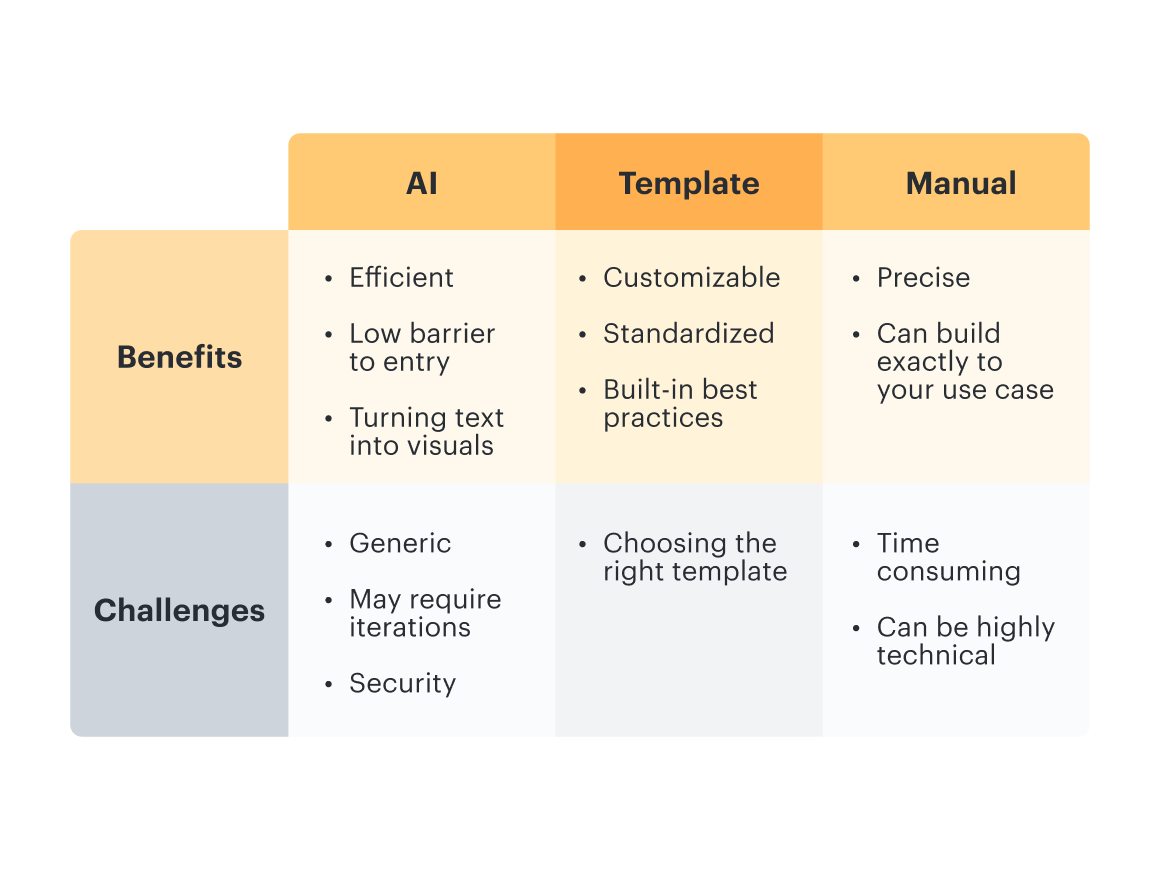
There are several pros of using AI for creating diagrams, but perhaps the greatest advantage is its speed. Lucid AI is specifically designed for productivity, allowing you to quickly summarize, outline, and generate diagrams in seconds. It’s also equipped with powerful brainstorming capabilities that allow you to collaborate more efficiently.

Explore all of Lucid’s AI features with our quick guide.
Read moreBenefits of diagramming with AI
-
Save time: Diagrams can be generated in seconds, making it perfect for prototyping, sketching simple systems, or visualizing rough ideas.
-
Low barrier to entry: You don’t have to be an experienced diagrammer to create visuals like flowcharts, mind maps, class diagrams, and more. You can simply tell Lucid AI what you want, and it will sketch it out for you.
-
Quick outlining: Have a text-based document or process outline? Make it easier to understand by turning it into a clear visual.
Challenges of diagramming with AI
-
Generic: AI often produces diagrams that are more generic or that lack specific context. You may need to spend some time adjusting the diagram to achieve exactly what you're looking for. Its still great for initially creating a rough framework for what you want, then making manual changes.
-
Security: AI brings in new security considerations to diagramming. It’s best practice to avoid including proprietary information on free AI accounts, such as those with ChatGPT or Gemini. Lucid takes customer information very seriously, and Lucid AI has been designed with security in mind.
When to use AI for diagramming
There are several strong cases for using AI to generate diagrams. Leveraging AI is a great way to get ideas out of your head in a structured way.
-
Prototyping different ideas: Quickly generate multiple iterations of diagrams to see different structures or flows. Or, if you have an idea and you want to brainstorm a mind map or something, AI is a great tool!
-
Transforming text to visuals: If you have an idea but don’t have the time or skillset to create a diagram, then you can simply give Lucid AI a text prompt for what type of visual you are looking for. Similarly, if you have a text-heavy document that you want to make more digestible, a visual aid will help when sharing this information with others.
-
Creating training assets: Having visuals accompany text is much better for comprehension. AI-generated diagrams can be a great aid to your text information, especially for training purposes.
Leverage diagram templates
Templates offer a nice middle ground between the speed of AI and the control of manual creation. Lucid offers hundreds of professional templates to give you and your team a solid starting point. Instead of starting from scratch, a template can help you visualize exactly what you need. Templates are ready to use and designed for efficient collaboration and customization so that you can create robust diagrams.
Benefits of diagramming with templates
-
Customizable: Templates provide a framework, but you have the autonomy to add in the exact information you want. When diagramming with Lucid templates, you can customize everything, from the colors to the style, and more.
-
Standardized: You can save your custom templates and share them with stakeholders so that work can be streamlined.
-
Built-in best practices: You don’t have to worry about missing any key steps because a template already includes them.
Challenges of diagramming with templates
-
Precision: While templates are customizable, they may not be best suited for highly unique processes. If this is the case, you may find yourself spending more time rearranging and editing the template than if you created one from scratch.
-
Decision paralysis: Selecting the right template can be challenging if you don’t quite know what you're looking for. With so many options available, it can be overwhelming. If you want to map a simple process but the template is too complex, including swimlanes, extra steps, or other pieces of info you don’t need, it might not make sense for your process.
When to use templates for diagramming
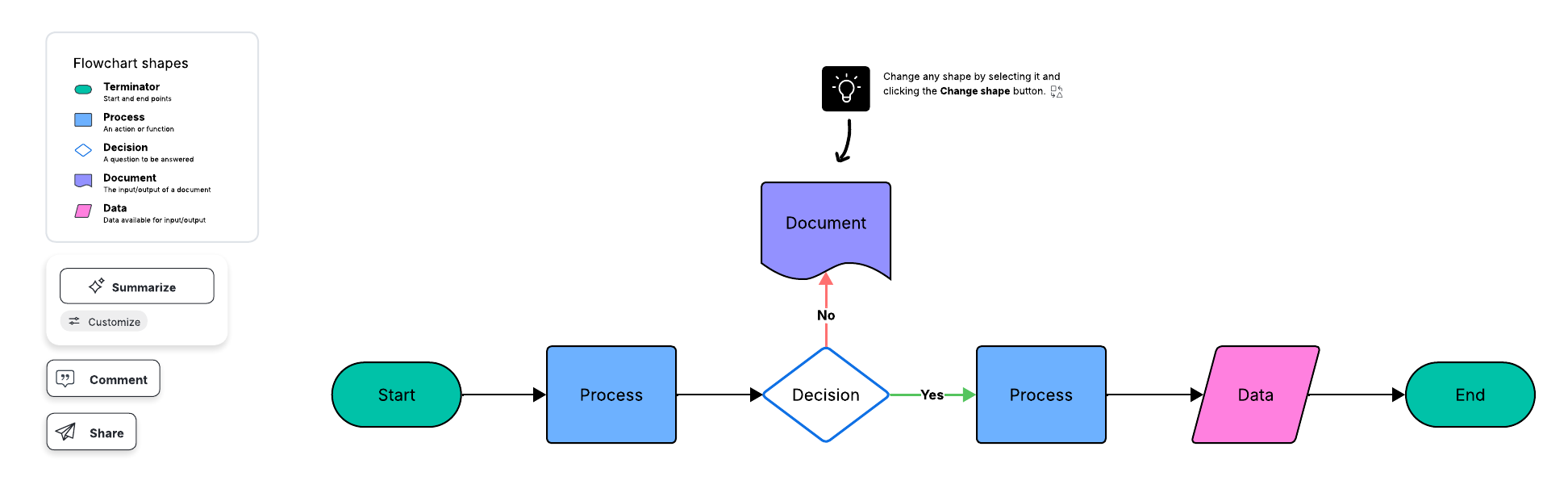
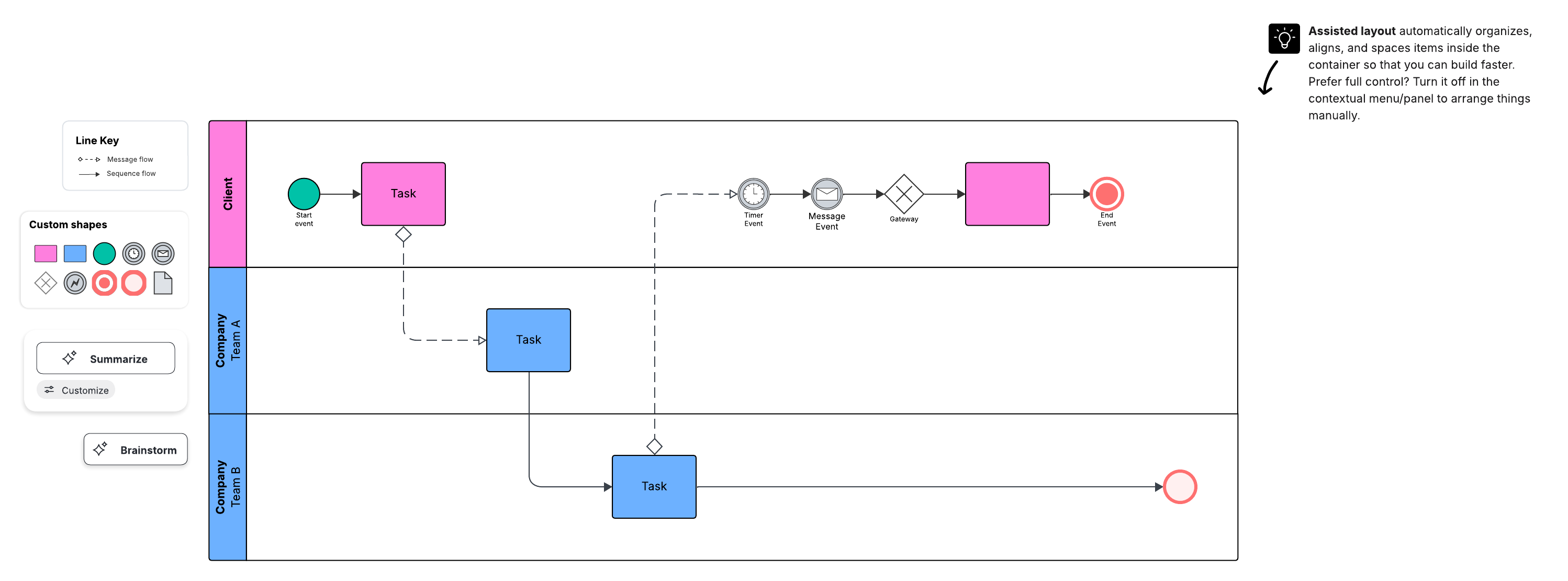
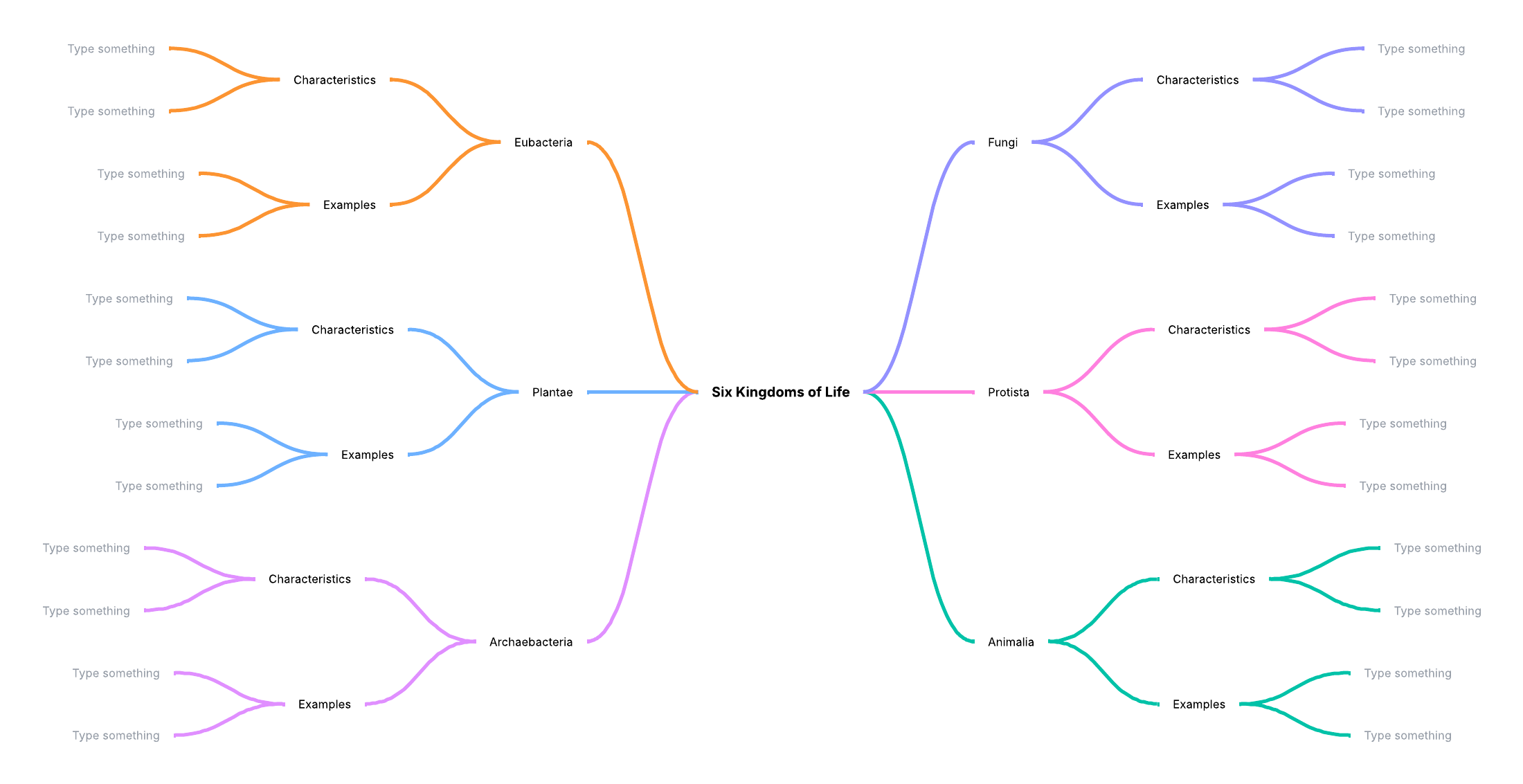
Templates are ideal for driving collaboration visually with your team and streamlining the way your team diagrams when you don’t know where to start.
Here are a few of our popular diagram templates to inspire you.
Manually create a diagram
Sometimes, you need a diagram that is highly specific to your use case, and a template or AI tool won’t suffice. While this may take the most time, it means you have a fresh canvas where you can control exactly what you create. And Lucid’s intuitive diagramming features help you create intentionally, making the manual diagramming process as efficient as possible.
Benefits of manually creating a diagram
-
Precision and customization: Since you’re starting from a blank canvas, you can build a highly-tailored diagram.
-
Robust features: If you’re building in Lucid, you have access to dozens of dynamic features, reducing the friction that comes with manual diagramming. Lucid has lots of great features to make a robust diagram manually. For example:
-
Assisted layout: Organize the contents of your diagram with swimlanes, Containers, and Frames. You can quickly adjust spacing and align shapes for a clean layout.
-
Quick tools: Easily access tools that help you create your diagram. Add and customize shapes, connect lines, and more without leaving the canvas.
-
Shape change: Change the look of your diagram by quickly swapping shapes and keeping the text. No more deleting or re-typing.
-
Preview shapes: As you diagram, ghost shapes will appear, offering suggestions for your diagram

Explore more features to help you diagram efficiently.
See nowChallenges of manually creating a diagram
-
Time consuming: Getting from a blank canvas to a high-fidelity visual takes time when you’re creating one from scratch.
-
Technical knowledge: While Lucid simplifies the diagramming process, intricate diagrams require some technical knowledge and familiarity with the software.
When to manually create your own diagram
Manually creating your diagram can be the right choice if you need a detailed visual for a specific use case. This method is great for unique internal systems, ensuring that the diagram is accurate and represents the exact functions.
Whether you use AI, a template, or create a diagram from scratch, Lucid’s canvas is the most efficient and effective platform to bring your visions to life.

Thinking of creating a diagram with Lucid AI? Explore our top tips for prompts beforehand!
Read now